How to Create an AI Product Demo Video
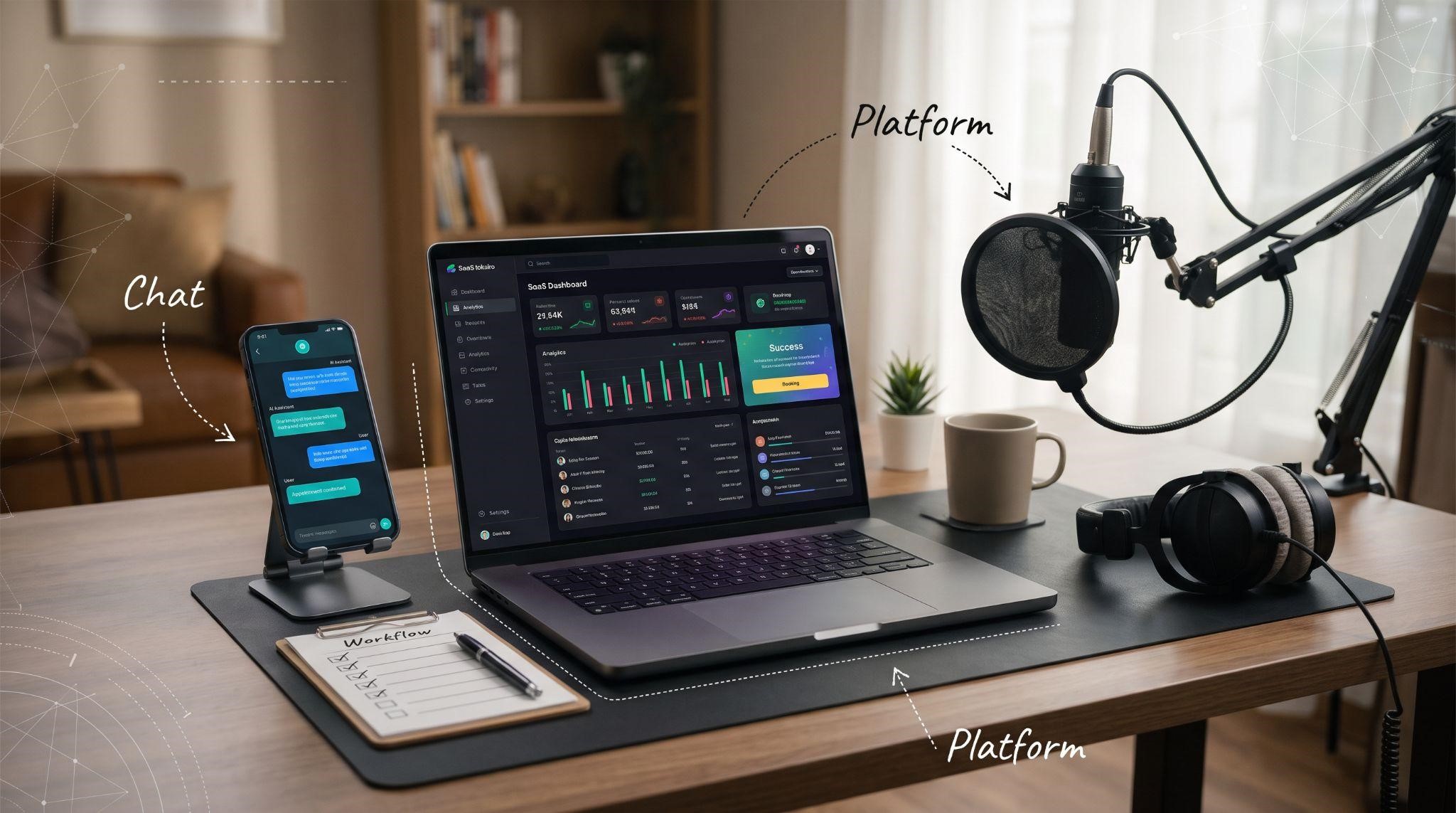
You know your AI product is impressive. You’ve watched it reply to leads, answer calls, and book appointments. Now you want to capture that on video so prospects can see it too.
Then reality hits:
How do I record a text conversation on a phone and the dashboard at the same time? How do I capture a Voice AI call with clean audio? What do I do when the AI answers slightly differently every take? And how do I make it all look polished?
This guide answers those questions. It’s a practical, hands-on tutorial on how to create an AI product demo video: the tools you need, how to capture chat and voice AI, how to build split-screen layouts, how to edit for clarity, and a simple one-week production plan to get it done.
If you’re still planning what your demo should show (scenarios, trust moments, and structure), start with our AI SaaS demo video complete guide. This post focuses on how to actually produce it.
What You’re Actually Producing
An AI product demo video usually combines several layers that are recorded separately and brought together in editing:
| Layer | What It Captures | Why It Matters |
|---|---|---|
| Customer view | The phone, chat widget, or call experience | Shows how the AI feels to customers |
| Business view | The dashboard updating as the AI works | Shows the value the business gets |
| Audio | Voiceover narration and Voice AI call audio | Explains what’s happening and lets viewers hear the AI |
| Graphics | Labels, zooms, captions, and highlights | Makes complex moments easy to follow |
| Branding | Logo, colors, intro, outro, and CTA | Makes it look like your product |
Thinking in layers makes AI demos much easier to produce. Instead of trying to capture everything in one perfect take, you record each piece cleanly and combine them later.
Your AI Demo Production Toolkit
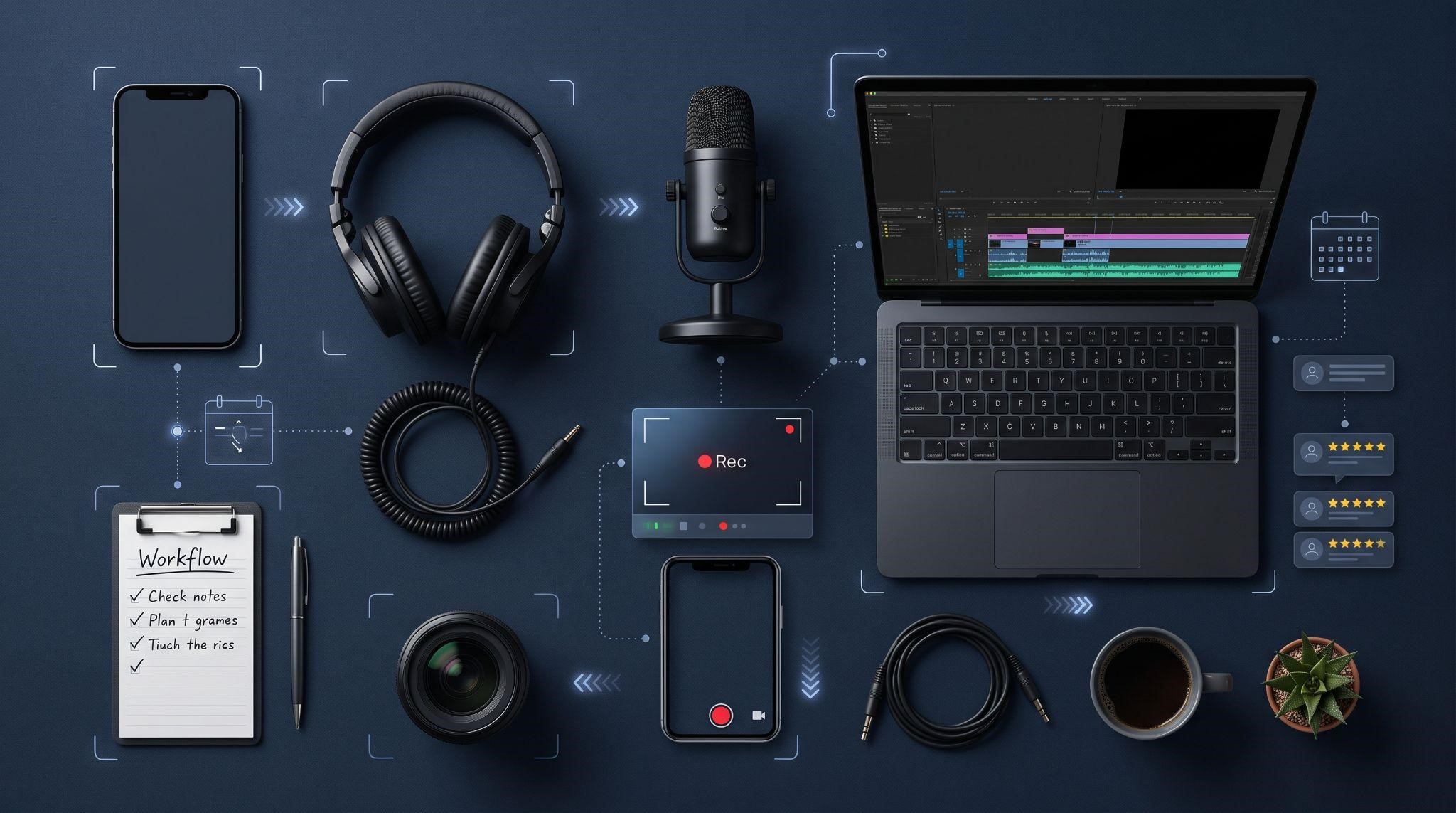
You don’t need expensive gear. Here’s what most AI demos require:
| Task | Example Tools | Notes |
|---|---|---|
| Screen recording | OBS Studio, Screen Studio, Camtasia, Loom | Record the dashboard and web chat widgets |
| Phone screen capture | Built-in screen recording on iPhone and Android, or mirroring tools like QuickTime (iPhone) and scrcpy (Android) | Capture SMS, DMs, and mobile chat |
| Call audio | Platform call recordings or a call recording setup on your test line | Capture Voice AI conversations |
| Voiceover recording | A USB microphone with Audacity or your editor’s recorder | Clean narration makes a big difference |
| Editing | DaVinci Resolve, Camtasia, Descript, Adobe Premiere Pro | Combine layers, add zooms and labels |
| Device mockups | Phone frame templates in your editor or design tool | Make phone footage look polished |
| Captions | Auto-captions in Descript, CapCut, or Premiere | Essential for viewers on mute |
Pick tools you’re comfortable with. A simple tool used well beats a complex tool used poorly.
Step 1: Build Your Demo Environment
Before recording anything, set up a clean, dedicated environment. This step saves hours of retakes later.
Create a Demo Business
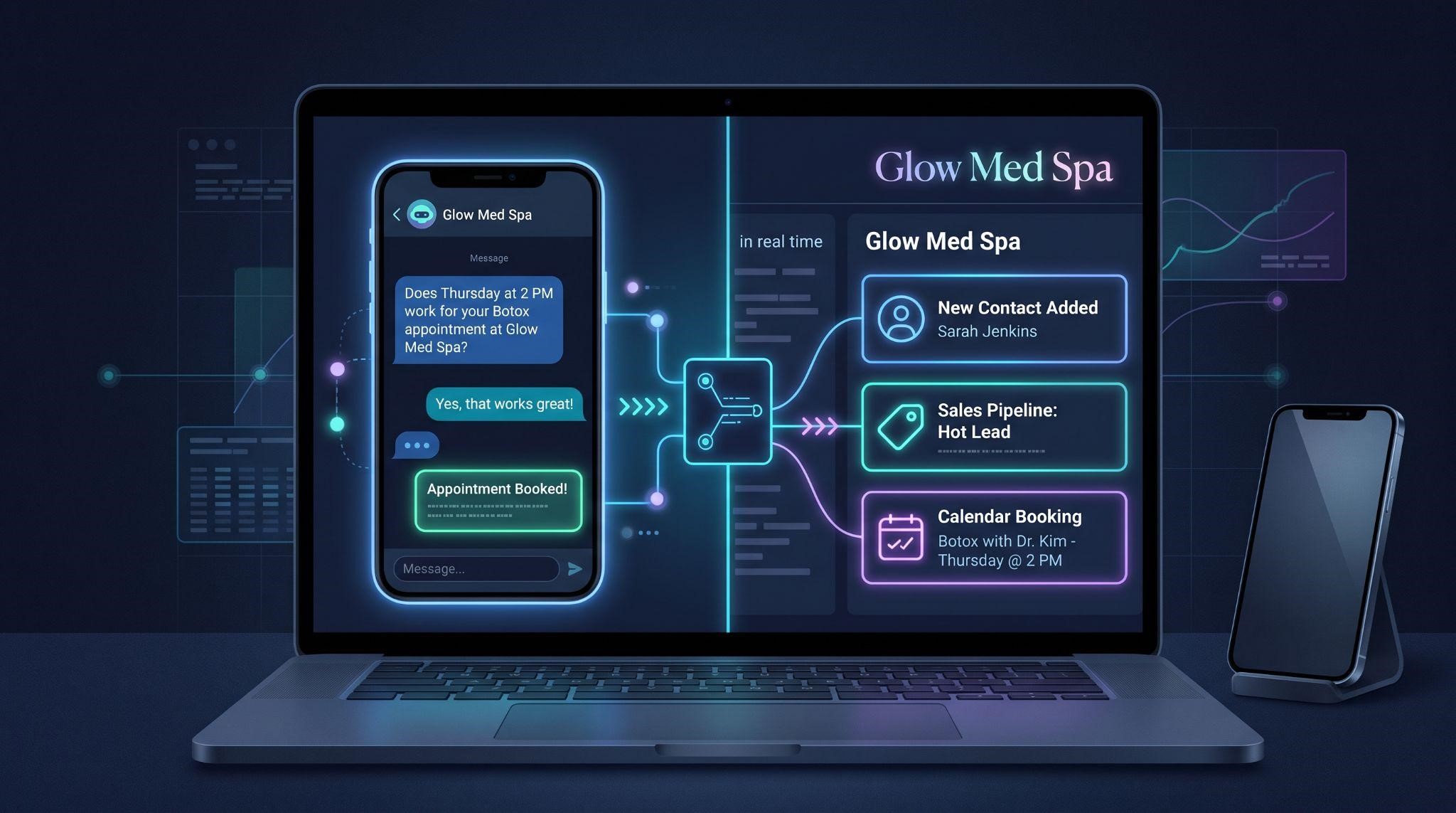
Set up a fictional but realistic business that matches your target niche, like “Glow Med Spa” or “Summit Roofing.” Give it:
White-Label Everything
Check every screen for your logo, colors, custom domain, and menu names. Prospects should never see GoHighLevel branding anywhere.
Set Up Dedicated Test Devices and Numbers
Never use real customer data or a real client’s account in a demo.
Step 2: Write a Shot List
A shot list tells you exactly what to record, in what order, and on which device. For AI demos, it’s essential, because you’ll be capturing several layers.
Sample Shot List (Chat AI Demo)
| Shot | Device | What to Capture |
|---|---|---|
| 1 | Laptop | Dashboard overview (5 seconds) |
| 2 | Phone | Customer opens Instagram and sends a DM |
| 3 | Phone | AI reply appears, conversation continues |
| 4 | Laptop | New contact appears in the dashboard |
| 5 | Phone | AI offers times, customer picks one |
| 6 | Laptop | Calendar booking appears |
| 7 | Phone | Customer asks to speak to a person |
| 8 | Laptop | Conversation handed to the team, notification appears |
| 9 | Laptop | Owner reviews the conversation in the inbox |
Match each shot to a line in your script. That way, you’ll know exactly how long each clip needs to be.
Step 3: Rehearse the AI Before Recording
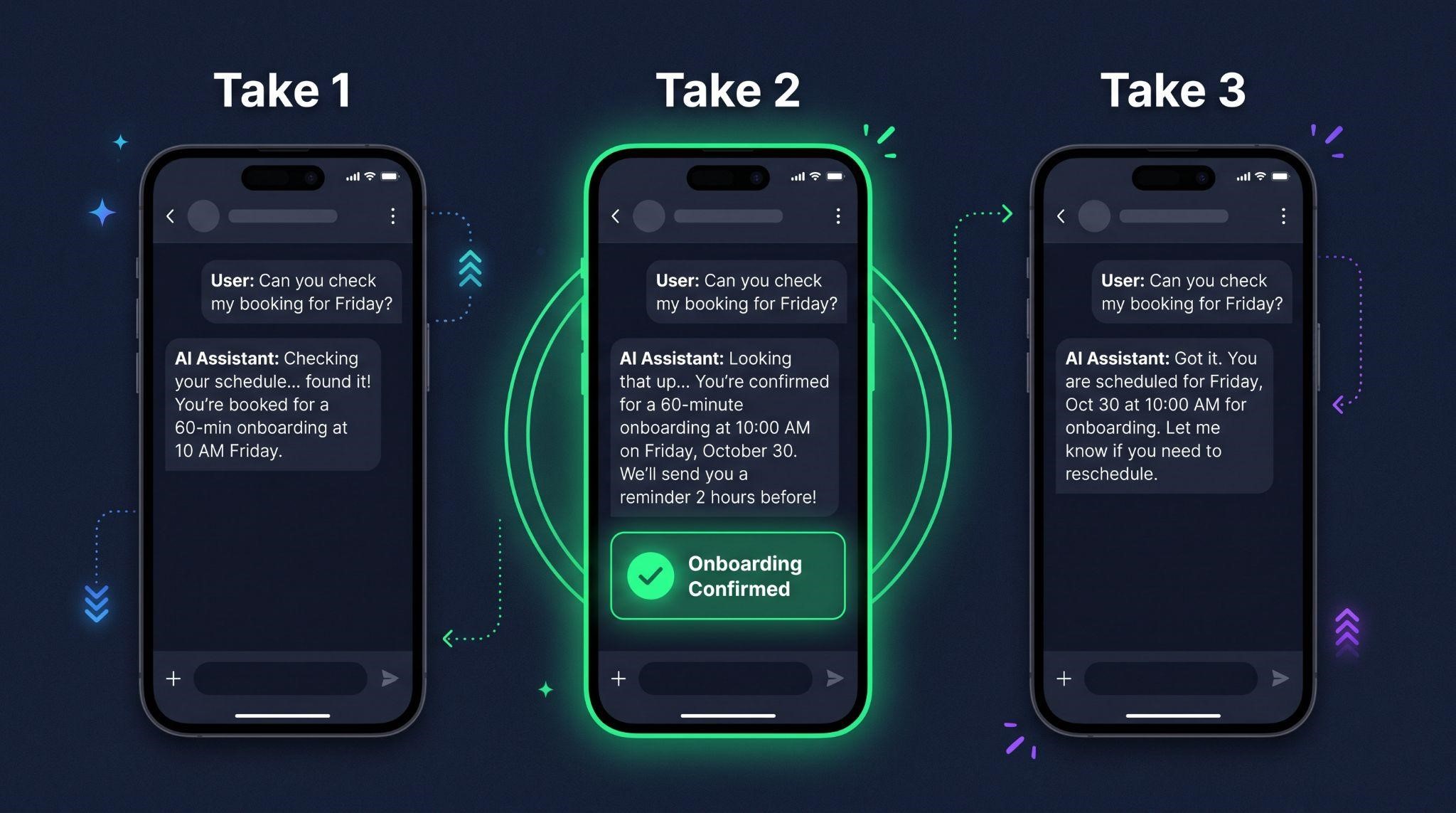
AI doesn’t always respond the exact same way twice. That’s normal, but it means rehearsal matters more than in regular software demos.
Plan for Multiple Takes
Record each AI scenario at least three times. In editing, choose the take where the AI’s reply is the clearest and most representative of real performance.
Keep it honest: choosing the clearest real take is fine. Faking responses the AI can’t actually give is not. Your demo should always reflect what customers will genuinely experience.
Step 4: Capture the Chat AI Experience
Here’s how to record text-based AI conversations cleanly:
For SMS and Social DMs (Phone)
Turn on Do Not Disturb and hide personal notifications
Set the phone to full brightness and a clean wallpaper
Start your phone’s built-in screen recording, or mirror it to your computer and record there
Send the customer messages from your shot list
Wait naturally for each AI reply and let it fully appear
Stop recording after the final message
For Website Chat Widgets (Desktop)
Open your demo website in a clean browser window
Zoom the browser so the chat text is easy to read
Start your screen recorder
Open the chat widget and type the customer’s messages
Capture each AI reply in full
Tip: Type at a natural pace. Lightning-fast typing looks fake, while very slow typing drags the video down. You can always trim pauses in editing.
Step 5: Capture the Dashboard Reactions
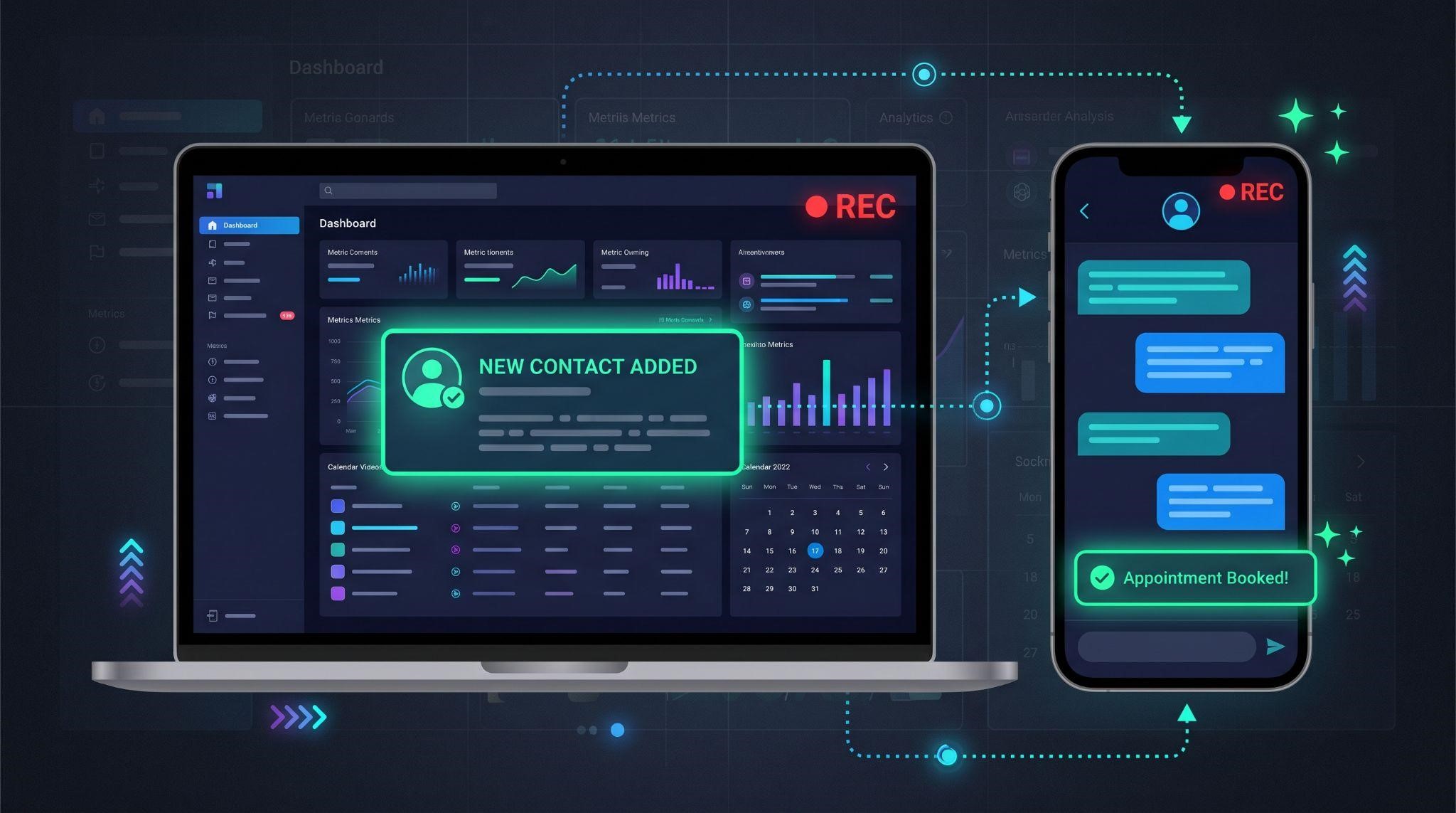
While the customer conversation is happening, the dashboard should be updating. Capture this separately on your laptop:
Pro tip: Record the phone and dashboard at the same time if you can. Start both recordings together, then sync them in your editor by matching a clear moment, like the instant a message arrives. This keeps timing realistic.
Step 6: Capture Voice AI Calls
Voice AI demos need great audio. Here’s how to get it right:
Use a quiet room for the “customer” side of the call
Call your Voice AI test number from your test phone
Follow a scripted caller role, but let the conversation flow naturally
Capture the call audio using your platform’s call recording or a call recording setup on your test line
Record the dashboard at the same time to show contact creation and booking
Download the call recording and transcript after the call
Do several takes and choose the clearest, most natural one
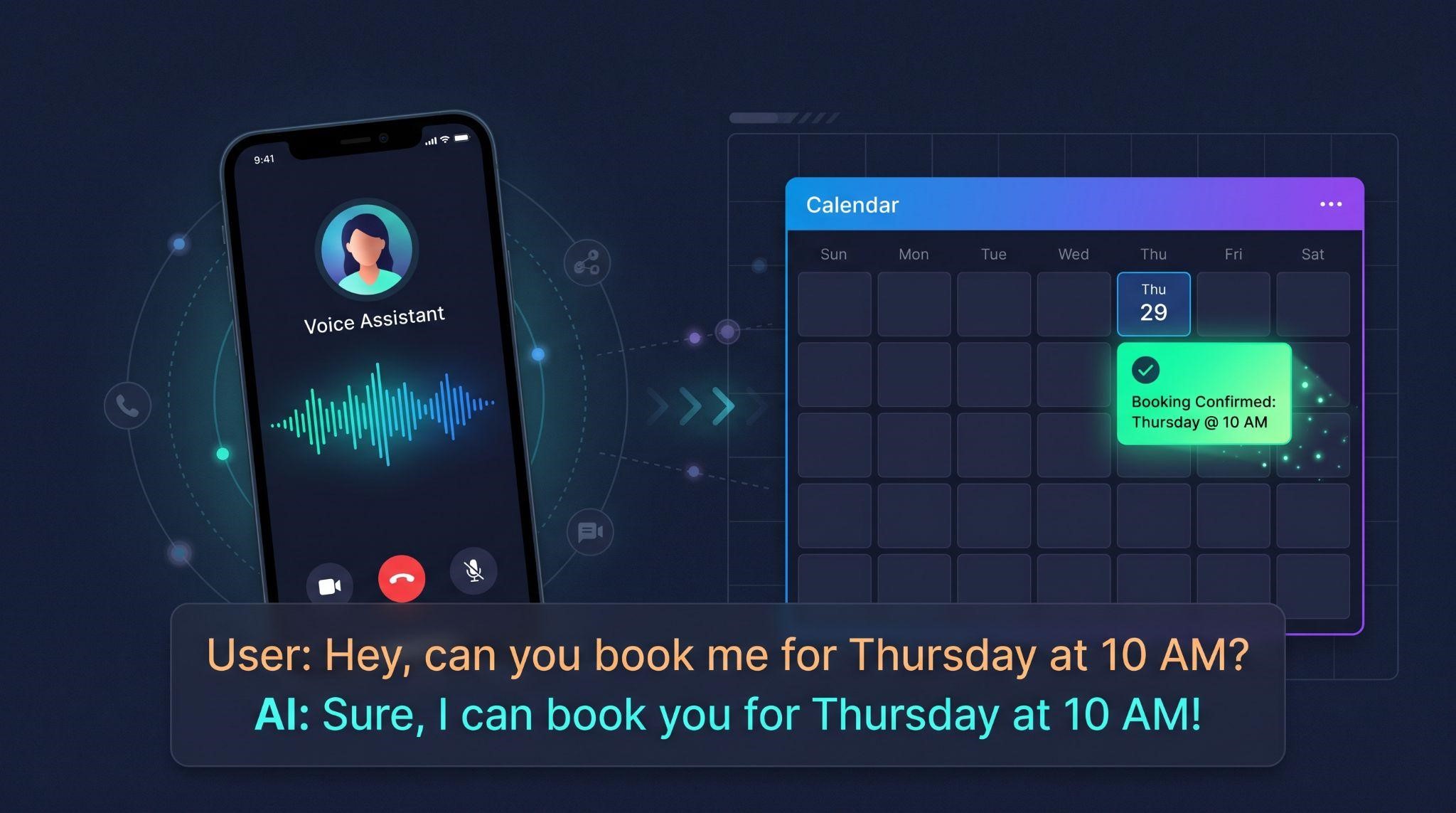
Make Voice AI Visual
Audio alone can feel empty on screen. Add:
Always follow call recording and disclosure rules that apply in your location, even for test calls.
Step 7: Record Your Voiceover
Your narration guides viewers through what’s happening. Record it after your screen captures, so you can match it to the final footage.
If you’d prefer, a professional voiceover artist can make the demo sound much more polished.
Step 8: Build Split-Screen Layouts
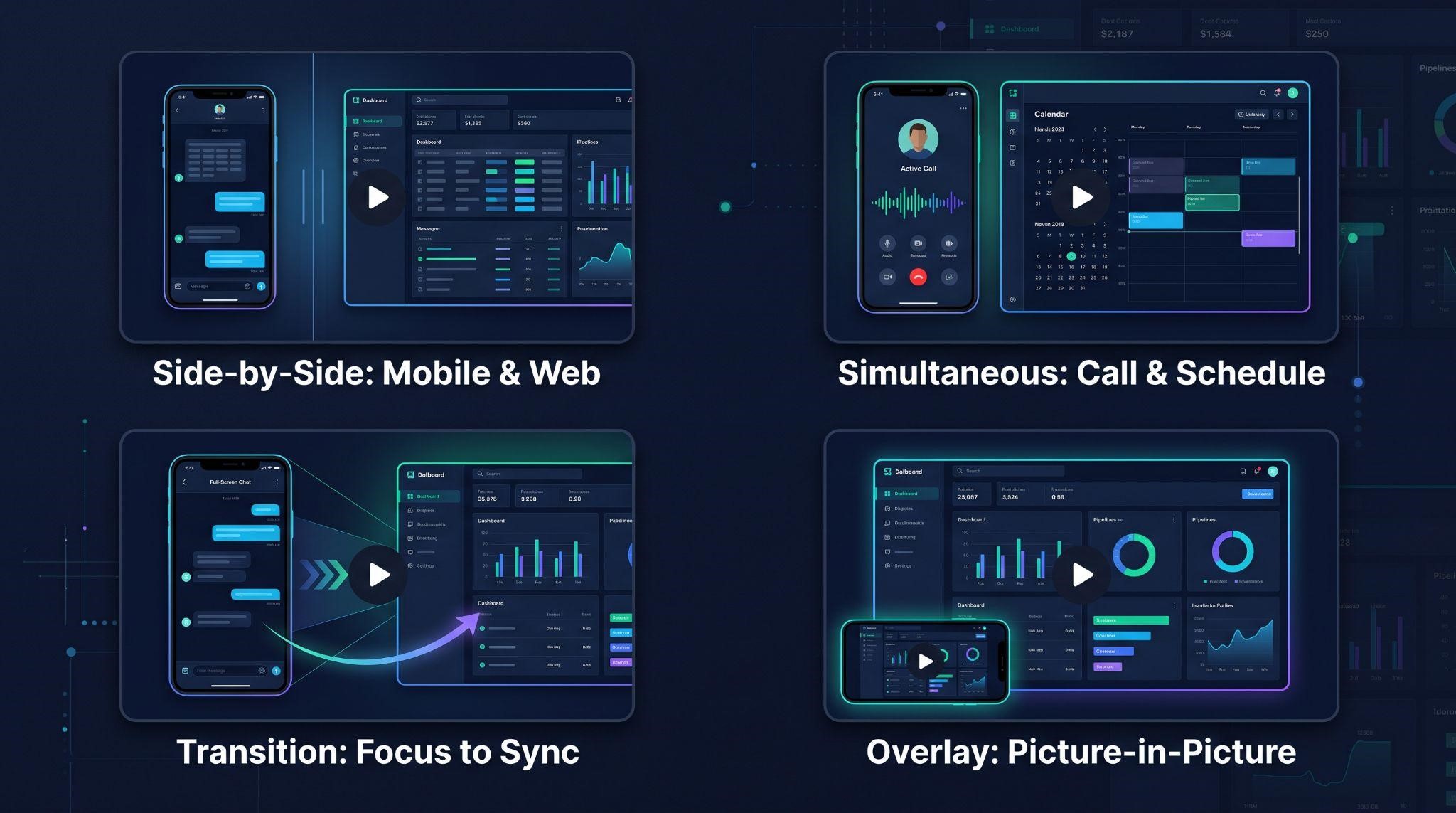
The split screen is the signature shot of AI product demos: customer view on one side, business view on the other.
How to Build It in Your Editor
Place the phone footage inside a phone mockup frame on the left
Place the dashboard footage on the right, scaled to fit
Sync both clips using a shared moment, like a message arriving
Add a clean background in your brand colors behind both
Highlight changes on the dashboard as they happen
Common Layouts
| Layout | Best For |
|---|---|
| Phone left, dashboard right | Chat and DM demos |
| Call screen left, calendar right | Voice AI booking demos |
| Full-screen chat, then zoom to dashboard | Mobile-first social videos |
| Picture-in-picture phone over dashboard | Longer walkthroughs |
Step 9: Edit for Clarity
Now bring everything together. Focus on making each AI moment easy to follow:
A Simple Edit Order
Lay down your voiceover
Place screen recordings to match each line
Build split screens where needed
Add zooms and labels
Add captions
Add music and sound effects
Add intro, outro, and CTA
Step 10: Review and Export
Review Checklist
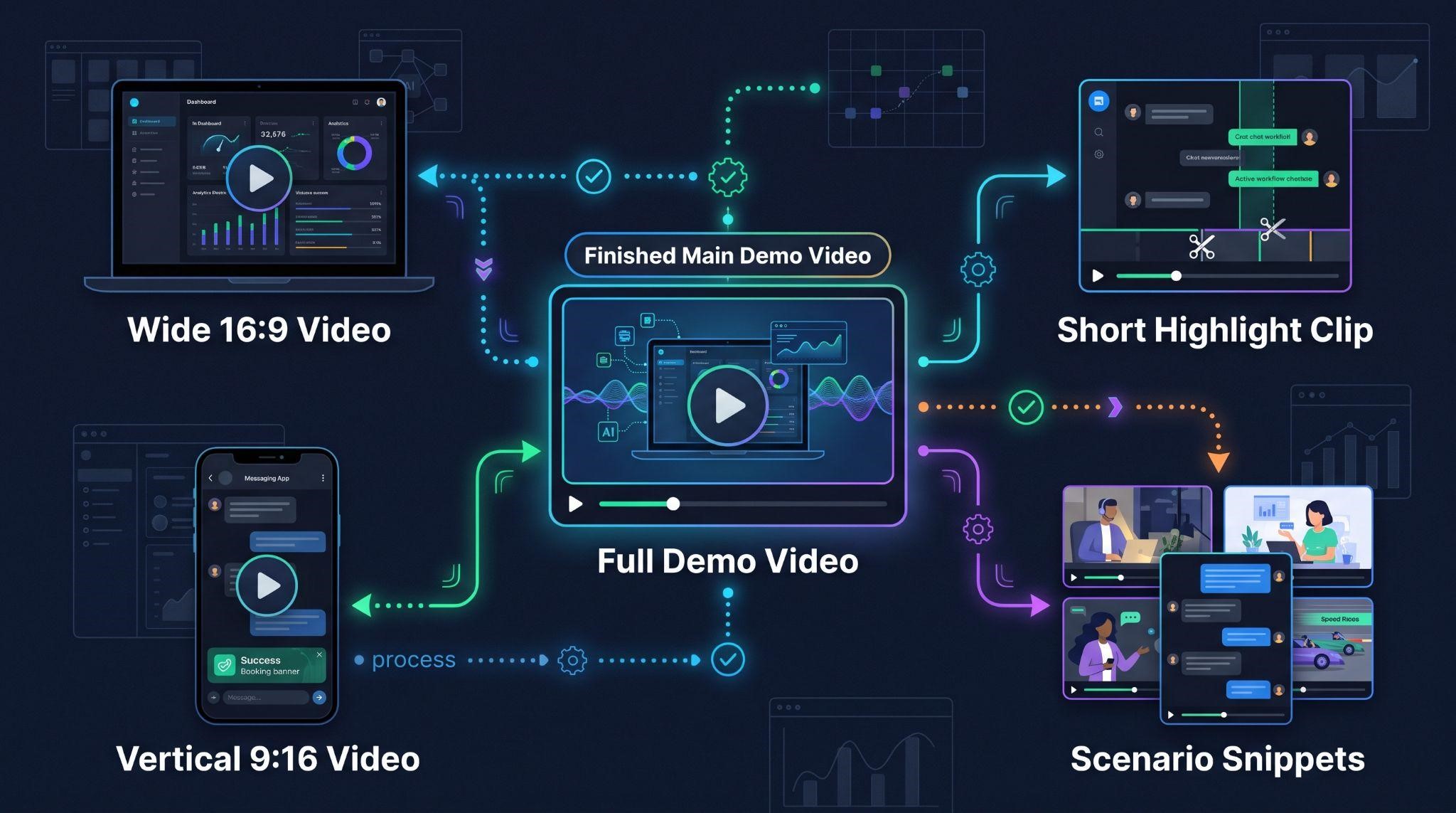
Export Versions
| Version | Format | Use It For |
|---|---|---|
| Full demo | 16:9, MP4, 1080p or higher | Website, sales emails, sales calls |
| Short cut | 60 to 90 seconds, 16:9 | Outreach and follow-ups |
| Vertical clip | 9:16 | Instagram, TikTok, Facebook Reels |
| Scenario clips | One clip per AI scenario | Feature pages, onboarding, help docs |
A Simple One-Week Production Plan
| Day | Tasks |
|---|---|
| Day 1 | Choose your scenarios, write the script and shot list |
| Day 2 | Build the demo business, knowledge base, and workflows |
| Day 3 | Rehearse every AI scenario and refine the setup |
| Day 4 | Record chat, dashboard, and Voice AI captures |
| Day 5 | Record the voiceover |
| Day 6 | Edit, build split screens, add zooms, labels, and captions |
| Day 7 | Review, fix issues, and export all versions |
This is a rough guide for a 3 to 4 minute demo. More complex demos can take longer.
Bonus: AI Tools That Speed Up Production
Ironically, AI can also help you make your AI demo faster:
| Production Task | How AI Tools Can Help |
|---|---|
| Scripting | Drafting script outlines and customer messages to refine |
| Voiceover | AI voice tools that turn your script into narration |
| Captions | Automatic captions you then proofread |
| Editing | Text-based editing that cuts video by editing the transcript |
| Translation | Creating versions in other languages |
Always review AI-generated scripts, captions, and voices carefully. They’re a starting point, not a finished product.
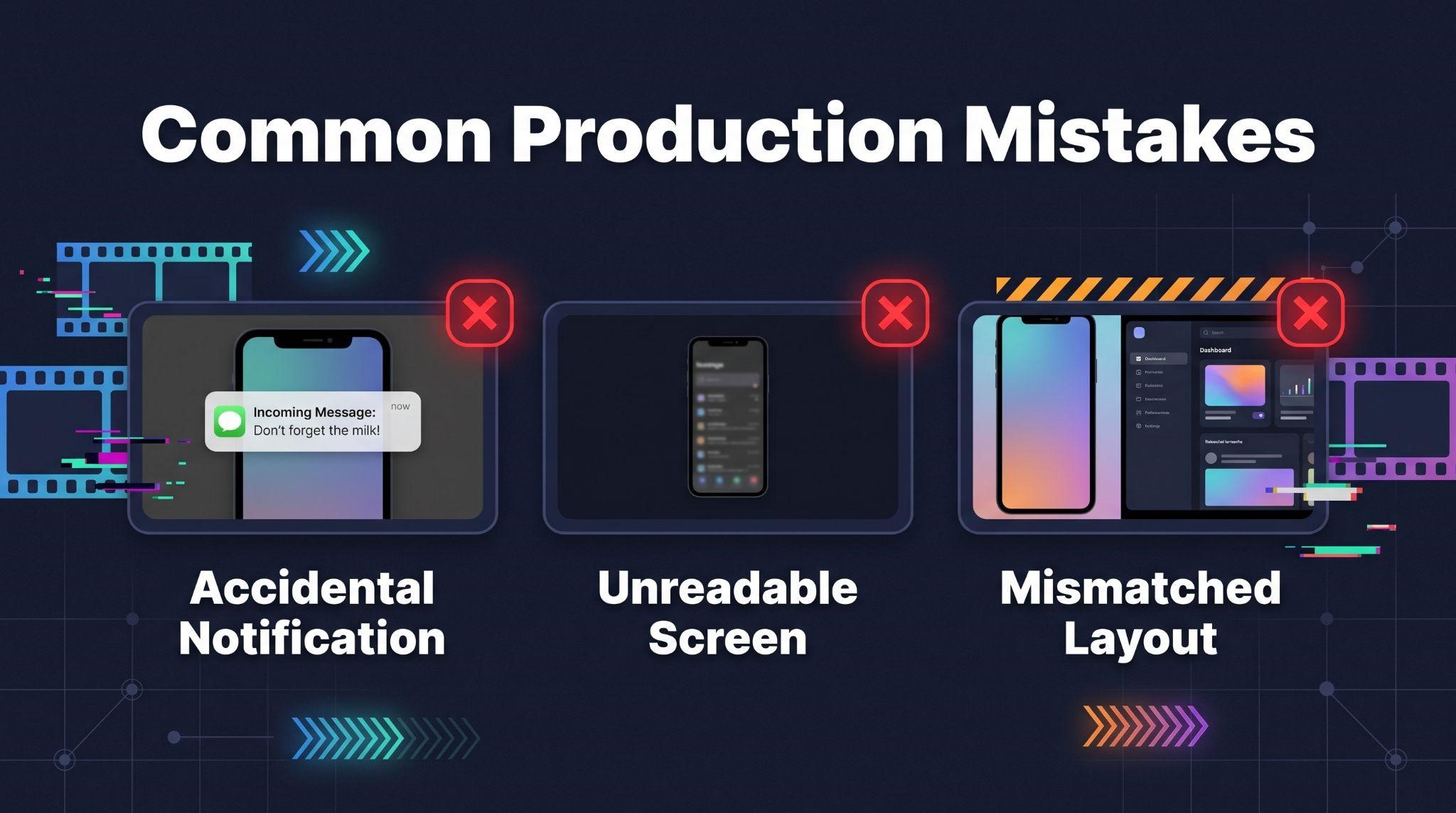
Common Production Mistakes
DIY vs. Professional AI Demo Videos
| DIY Production | Professional Production | |
|---|---|---|
| Your time | About a week of planning, recording, and editing | Share your branding and goals, then review |
| Tools and skills | Recording, audio, compositing, and editing | Handled for you |
| Visual polish | Depends on experience | Smooth animation, clean layouts, consistent branding |
| White-labeling | You check every frame | GoHighLevel never named or shown |
| Best for | Teams with video skills and time | SaaS owners who want a polished result fast |
Let GHL Explainer Create Your AI Product Videos
At GHL Explainer, we create premium white-label videos built specifically for GoHighLevel SaaS businesses, including AI-powered platforms.
Start with an AI explainer. Before prospects watch a full demo, they need to understand why your AI matters. Our white-label explainer videos turn your AI’s value into a clear 60 to 90 second story. Choose a ready-made structure like the AI Employee explainer, which shows clients their new 24/7 AI teammate handling calls, messages, follow-ups, and content, or the Automation and Workflows explainer. Need something specific? We’ll script a fully custom explainer around your AI product.
Then add a demo. Our demo videos give prospects a full walkthrough of your platform, built to replace your Loom and live demo calls.
Every video is:
Need a complete set? Our Video Stacks bundle explainer, demo, feature, onboarding, and marketing videos at a lower cost than ordering each separately.
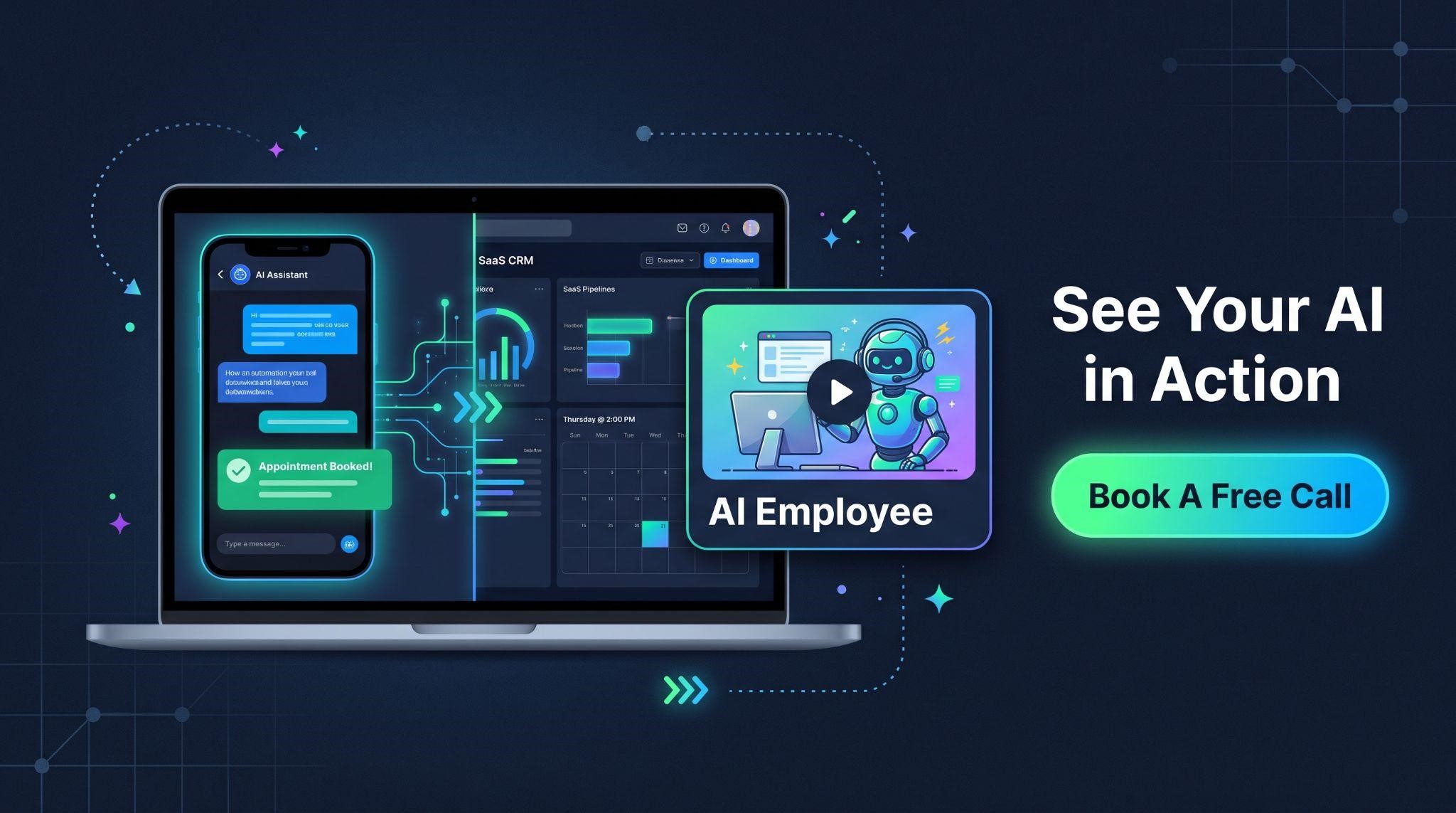
Want a polished AI product video without spending a week producing it?
Book A Free Call and we’ll help you choose the right explainer and demo for your platform.
Frequently Asked Questions
What do I need to create an AI product demo video?
A screen recorder, a way to capture your phone screen, a microphone for voiceover, call recordings for Voice AI, and video editing software.
How do I record a chat AI conversation on a phone?
Use your phone’s built-in screen recording or mirror the phone to your computer and record it there, with Do Not Disturb turned on.
How do I show the phone and dashboard together?
Record both at the same time, then combine them in a split-screen layout in your editor, syncing them on a shared moment.
How do I capture Voice AI calls for a demo?
Call your Voice AI test number, capture the audio using call recording, and add a phone mockup, waveform, and captions in editing.
What if the AI responds differently each take?
That’s normal. Record several real takes and use the clearest one, without faking any responses.
How long does it take to make an AI product demo video?
A 3 to 4 minute demo can take about a week, including setup, rehearsal, recording, and editing.
Can AI tools help me make my demo?
Yes. AI can help draft scripts, create voiceovers, generate captions, and speed up editing, but always review the results.
Will GoHighLevel appear in a GHL Explainer video?
No. Every video is 100% white-labeled to your brand.
Skip the Loom. Talk to us.
Tell us what you're building. We'll tell you exactly which video it needs.
or write to hello@ghlexplainer.com