GoHighLevel Social Media Planner Guide

Every business owner knows they should be posting on social media. Fewer actually do it consistently.
Between running the business, serving customers, and managing staff, social media usually ends up at the bottom of the list. For agencies managing content for several clients, juggling multiple accounts across multiple platforms can quickly become chaos.
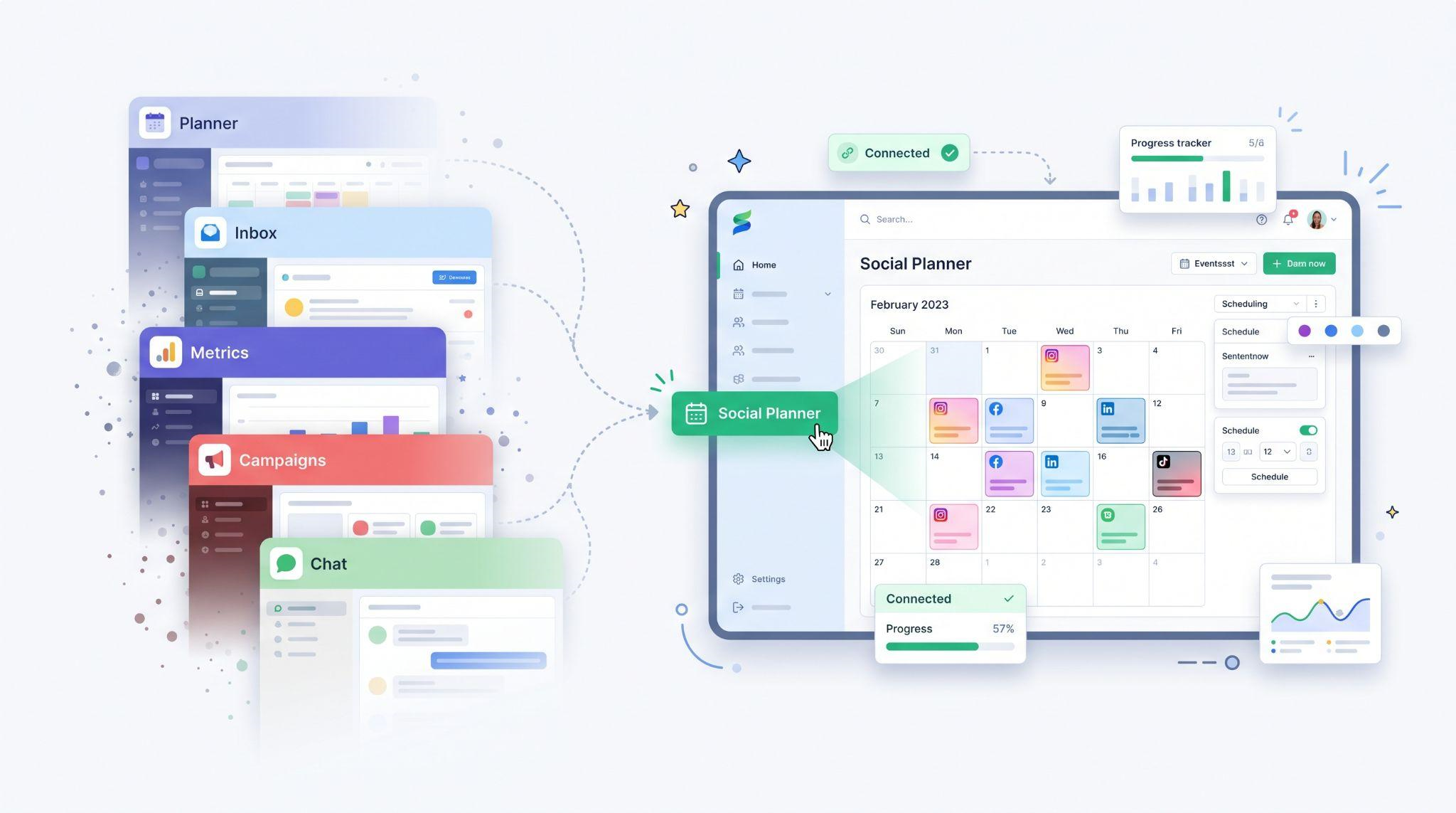
The GoHighLevel social media planner solves this by putting content creation, scheduling, approvals, and reporting in one place, right inside the same platform as the CRM.
In this guide, we’ll cover what it is, which platforms it supports, its most useful features, how to set it up, content ideas for local businesses, and how to help your clients actually use it.
What Is the GoHighLevel Social Media Planner?
The social media planner (often called the Social Planner) is a built-in scheduling and posting tool inside GoHighLevel. It lets users create, schedule, and publish social posts without leaving the dashboard.
You’ll typically find it under Marketing → Social Planner.
For many businesses, it replaces separate tools like Hootsuite or Buffer. And because it’s included at all plan tiers, there’s no extra subscription to manage.
Which Platforms Does It Support?
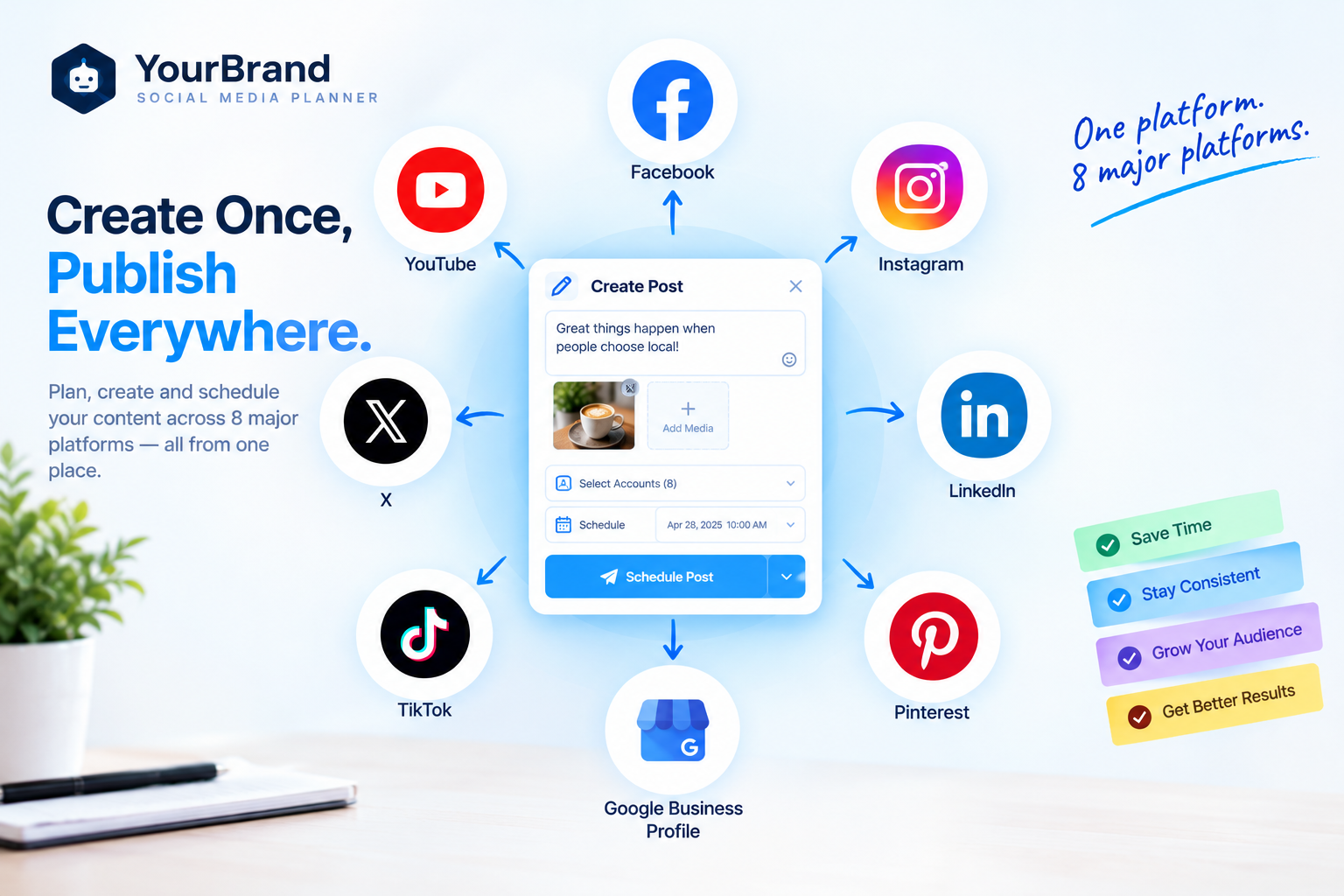
The Social Planner can schedule content across the platforms that matter most to local businesses and agencies. Supported platforms include Facebook, Instagram, LinkedIn, X, TikTok, YouTube, Google Business Profile, and Pinterest.
| Platform | Best For |
|---|---|
| Community updates, offers, and local engagement | |
| Visual content, before-and-after shots, and Reels | |
| B2B businesses, professional services, and thought leadership | |
| Google Business Profile | Local SEO, offers, and updates shown on Google |
| TikTok | Short-form video for younger audiences |
| YouTube | Longer videos, tutorials, and Shorts |
| X | Quick updates and industry conversations |
| Home, beauty, food, and lifestyle businesses |
Platform support and features can change based on each network’s API rules, so check your account for the latest options.
Key Features of the Social Media Planner
Here’s a quick look at what the Social Planner can do:
| Feature | What It Does |
|---|---|
| Content Calendar | Shows all scheduled posts in a visual calendar |
| Multi-Platform Posting | Publishes one post to several platforms at once |
| CSV Bulk Upload | Schedules weeks or months of content at once |
| Templates | Fills a calendar quickly with ready-made post ideas |
| Recurring Posts | Repeats evergreen content automatically |
| RSS Posts | Shares new blog articles automatically |
| Content AI | Writes and improves captions |
| Review Posts | Turns customer reviews into social content |
| Approvals | Lets clients or managers approve posts before publishing |
| Media Library | Stores images and videos in one place |
| Statistics | Tracks post performance |
Let’s go through the most important ones.
1. Content Calendar
There are two views: a calendar view showing posts by date, and a list view showing all scheduled content in order.
For agencies, the calendar is especially useful. It gives a clear view of content density, so you can instantly see gaps in a client’s feed or posts clustering on certain days.
2. Creating and Scheduling Posts
Creating a post is simple:
Click New Post
Choose the accounts to publish to
Write the caption (or use AI)
Add images or video from the media library
Pick a date and time, or post immediately
You can tailor each post for different platforms, such as a shorter caption for X and more hashtags for Instagram.
3. CSV Bulk Upload
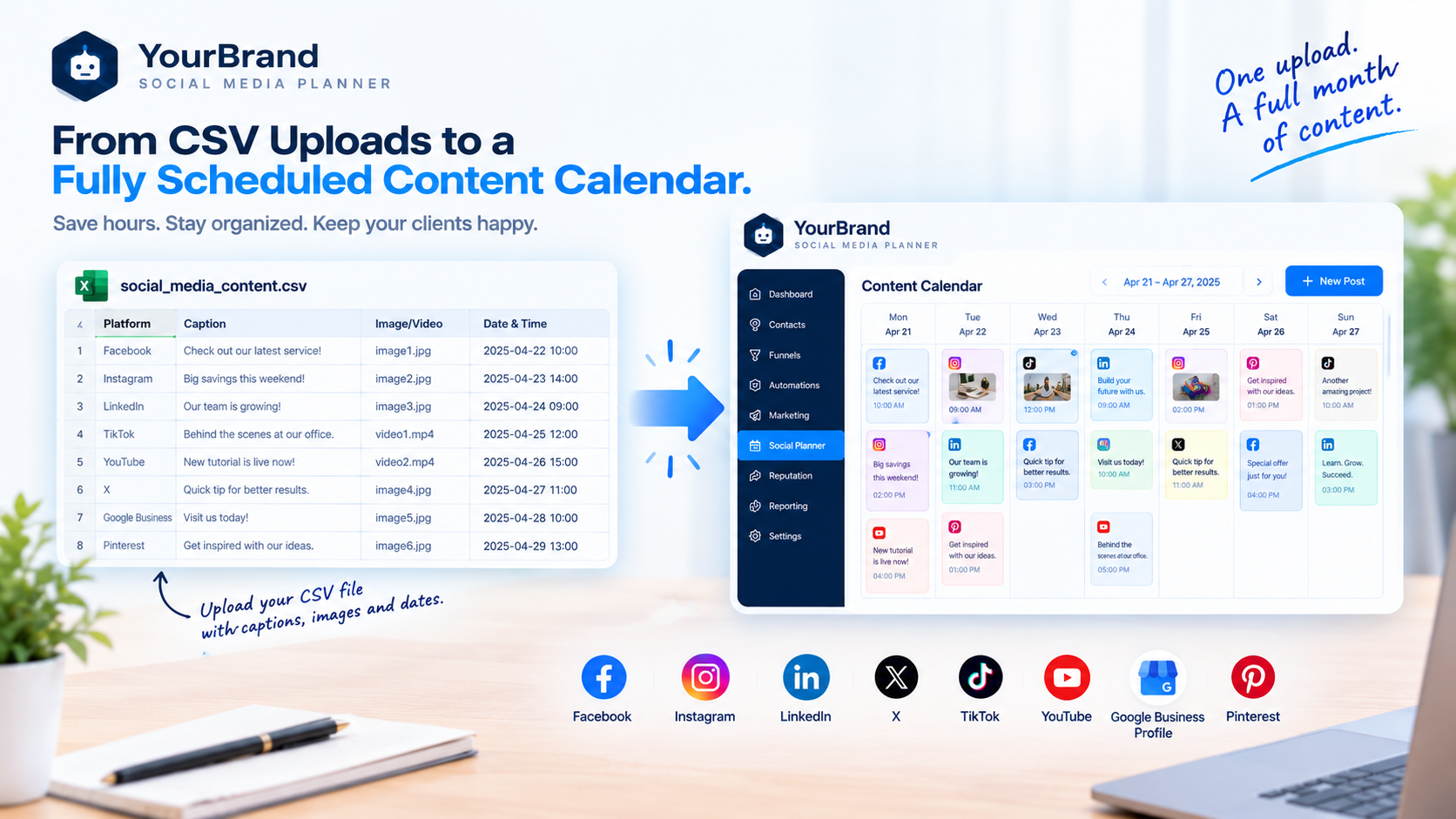
This is a huge time-saver. You can download the CSV template, fill it with captions, image URLs, and dates, and upload 30, 60, or 90 days of content at once.
For agencies managing multiple clients, this turns a full day of scheduling into a quick upload.
4. More Ways to Create Content
When creating a new post, you’ll find several options beyond writing from scratch: Post Reviews, RSS Posts, Content AI, Social Planner Templates, and Upload from CSV.
5. Content AI for Captions
Staring at a blank caption box is one of the biggest reasons businesses stop posting. The built-in AI can help write, rewrite, or polish captions, and AI caption tools are optional, so users can write their own whenever they prefer.
A simple tip: give the AI context, like the service, offer, and audience, then edit the result so it sounds like the business.
6. Approval Workflows
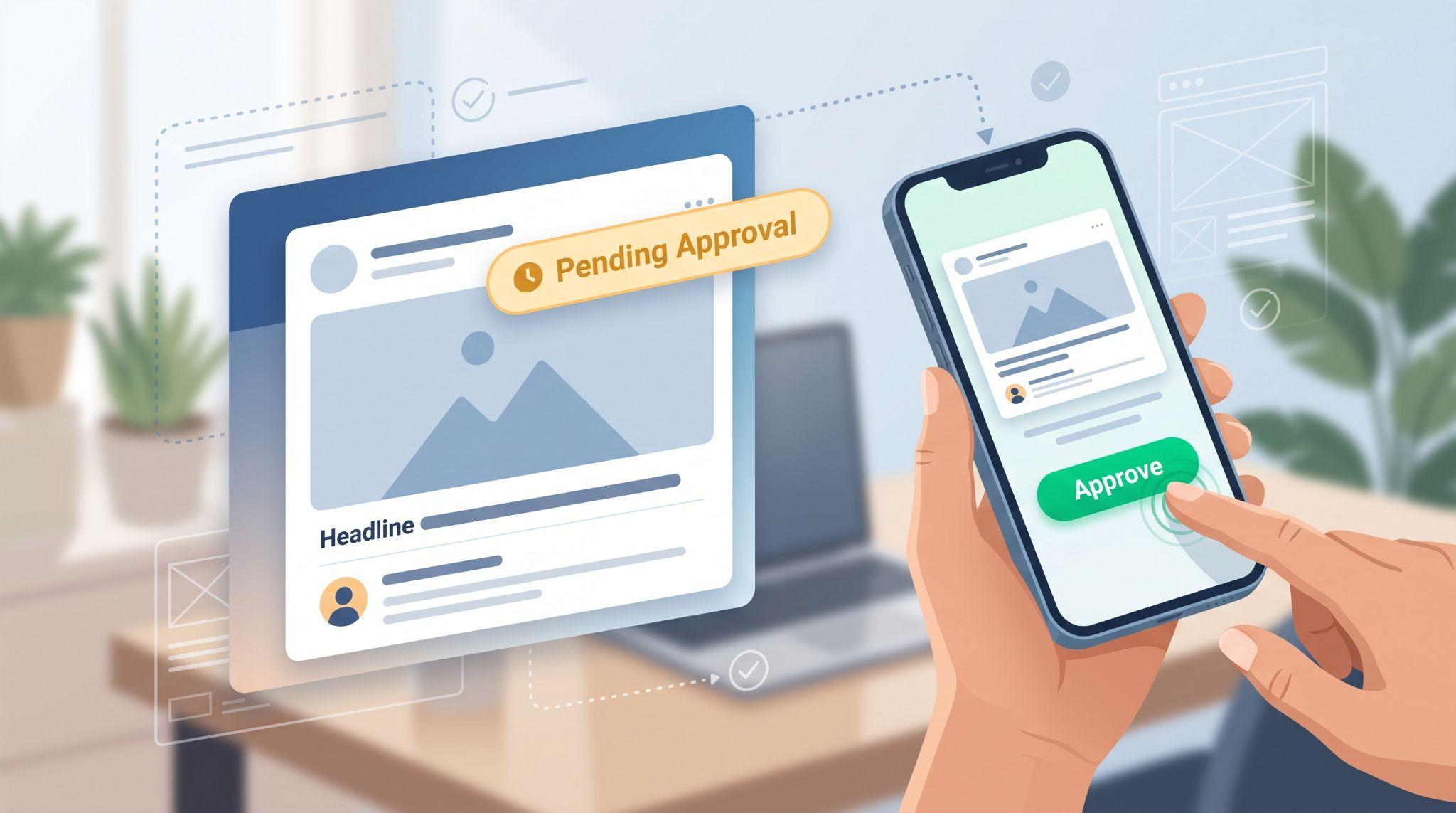
For agencies, this is a game-changer. Approval workflows are built into the Social Planner, so clients can review and approve posts before anything goes live.
No more emailing screenshots back and forth or waiting days for a “looks good” reply.
7. Media Library and Team Access
The Social Planner connects directly to the GoHighLevel media library, so images and videos are stored in one place. You can also grant specific team members access to the Social Planner, which helps agencies divide work across a content team.
8. Performance Statistics
The Social Planner includes post-level metrics, helping you see which content gets the most engagement. Use these insights to double down on what works.
How to Set Up the Social Media Planner
Here’s a simple setup process for a new client:
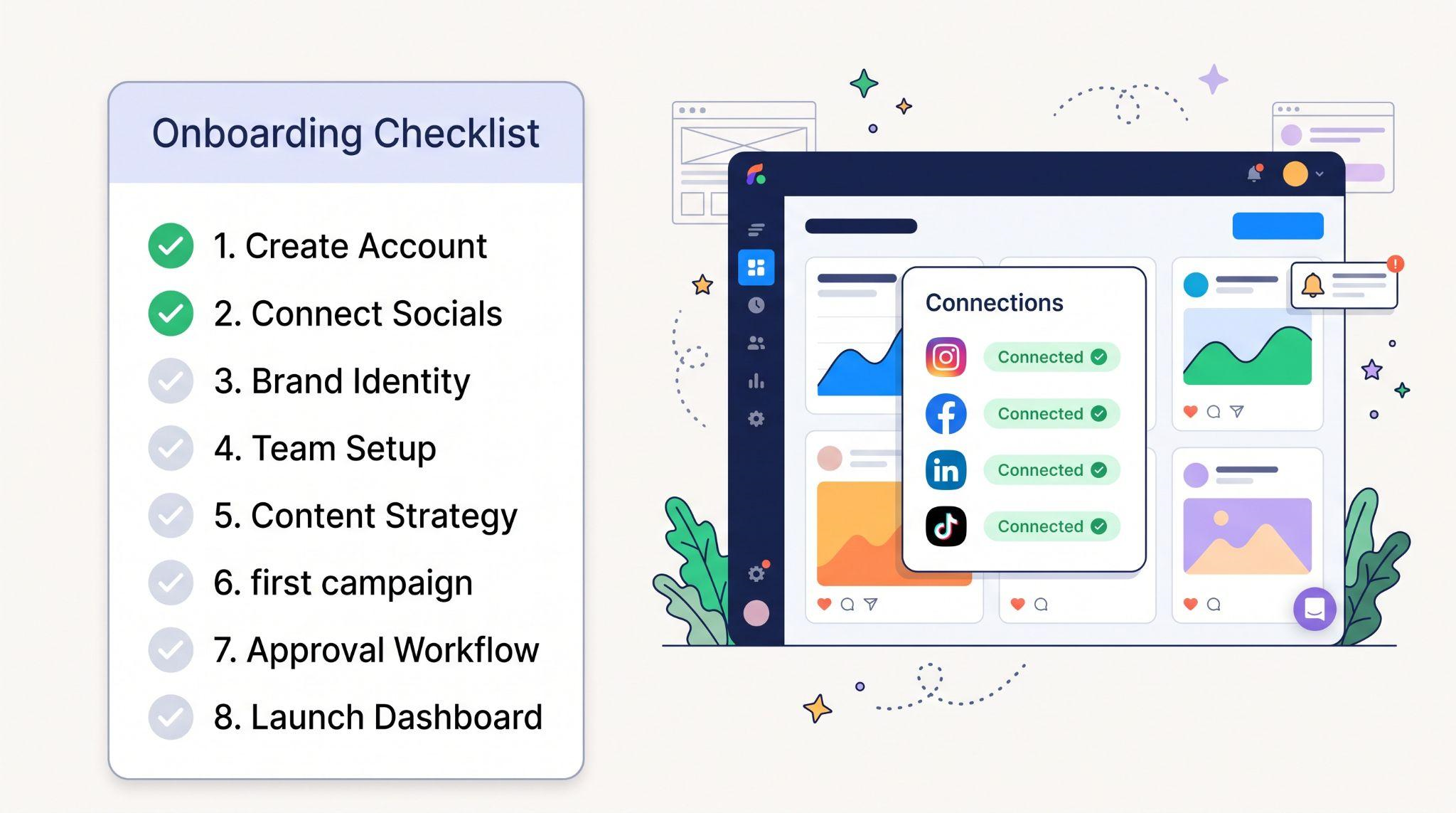
Open the Social Planner. Go to Marketing → Social Planner.
Connect social accounts. Log into each platform and grant publishing permissions.
Upload brand assets. Add logos, photos, and videos to the media library.
Create content pillars. Decide what types of posts the business will share (more on this below).
Plan the first month. Use templates, AI, or a CSV upload to fill the calendar.
Set up approvals. If you manage content for clients, turn on approval workflows.
Add recurring and RSS posts. Automate evergreen content and blog sharing.
Review performance monthly. Adjust content based on what gets the best results.
Content Ideas for Local Businesses
Not sure what to post? Mix these content pillars to keep a feed interesting:
| Content Pillar | Example Post Ideas |
|---|---|
| Educational | Tips, how-tos, myths vs. facts, FAQs |
| Social Proof | Customer reviews, testimonials, before-and-after photos |
| Behind the Scenes | Team introductions, a day in the life, workspace tours |
| Promotional | Seasonal offers, new services, limited-time deals |
| Community | Local events, partnerships, charity work |
| Engagement | Polls, questions, “this or that” posts |
A Simple Weekly Posting Schedule
| Day | Content Type | Example (Med Spa) |
|---|---|---|
| Monday | Educational | “3 things to know before your first facial” |
| Wednesday | Social Proof | A 5-star review turned into a branded graphic |
| Friday | Behind the Scenes | Meet the team member behind your favorite treatment |
| Sunday | Promotional | “Book this week and get a free add-on” |
Consistency matters more than volume. Three or four quality posts a week beats posting twice a day for a week and then disappearing for a month.
Social Media Planner vs. Separate Scheduling Tools
| GoHighLevel Social Planner | Separate Scheduling Tools | |
|---|---|---|
| Cost | Included in every plan | Extra monthly subscription |
| CRM connection | Built in | Usually separate |
| Review posts | Turns reviews into content | Rarely available |
| Client approvals | Built in | Often on higher plans only |
| White-labeling | Fully branded for agencies | Usually not available |
| Advanced analytics | Solid basics | Some tools offer deeper reporting |
For most small businesses and agencies, having social media inside the same platform as the CRM, inbox, and reviews is a big win.
Best Practices
Common Mistakes to Avoid
Selling Social Media Management as an Agency
The Social Planner makes it easy to offer social media management as a service or include it in a SaaS plan. Popular packages include:
The Real Challenge: Clients Don’t Use It
Here’s a familiar story. A client signs up, sees “Social Planner” in the menu, clicks it once, and never comes back. They assume it’s complicated, or they don’t realize it can replace the tool they’re already paying for elsewhere.
When clients don’t use a feature, they don’t value it. And when they don’t value what they’re paying for, they eventually leave.
The fix is helping them see how simple it is, quickly and clearly. A short video showing them how to connect accounts, create a post, and schedule a month of content can turn a forgotten menu item into a tool they use every week.
Explain the Social Media Planner With a Feature Video
Our white-label GoHighLevel feature videos turn tools like the social media planner into short, easy-to-follow animations. Each video focuses on a single feature and explains it in 45 to 60 seconds.
Here’s what’s included:
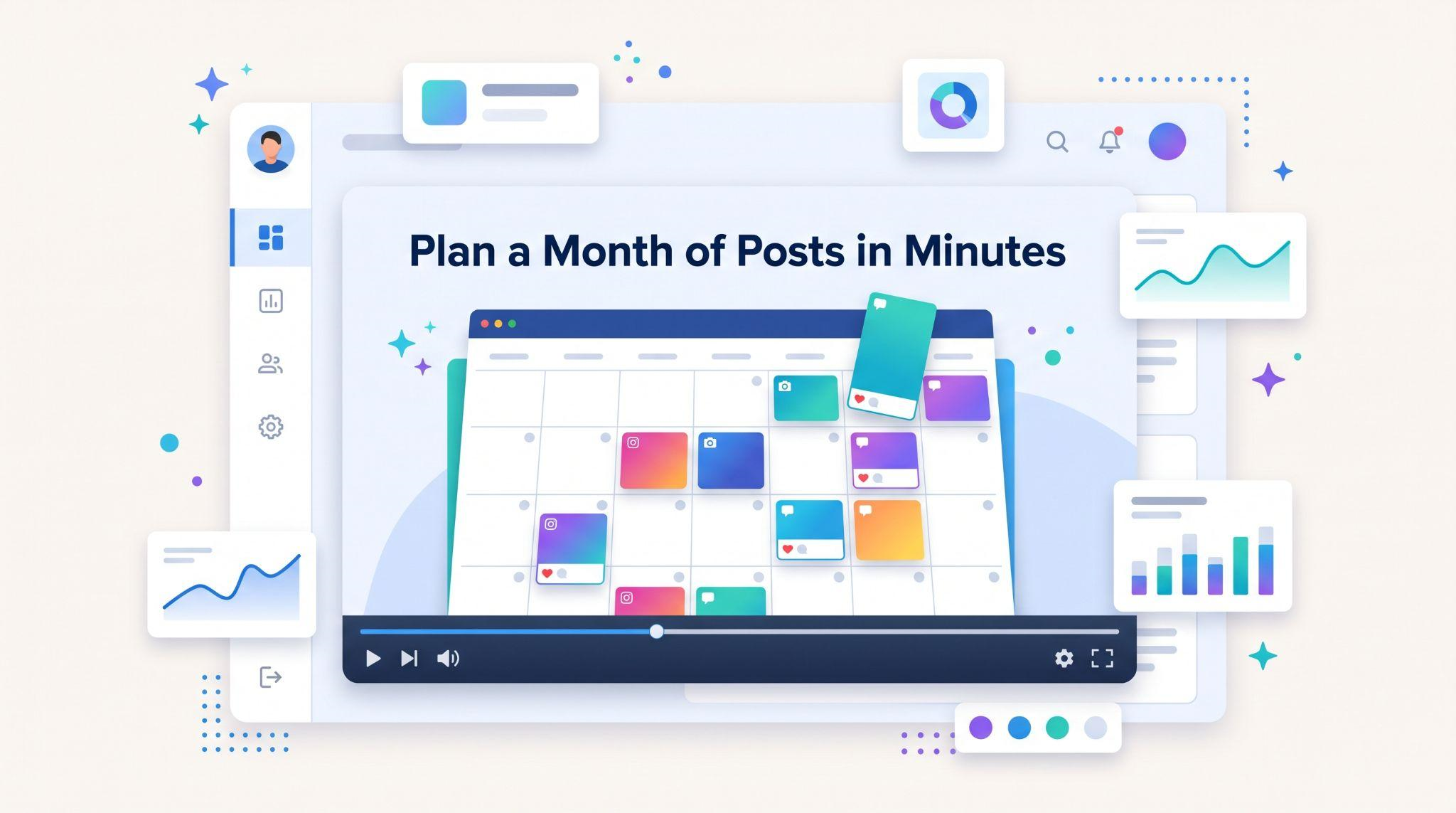
Here’s where to use your social media planner feature video:
| Where to Use It | What It Does |
|---|---|
| Sales pages and ads | Shows prospects they can replace their social scheduling tool |
| Sales calls | Demonstrates value in under a minute |
| Onboarding checklists | Encourages clients to connect their social accounts |
| Inside your app | Explains features like CSV upload and approvals |
| Social media | Promotes your platform with your platform |
Tips for Selling the Social Media Planner
Ready to help clients actually use their social media planner?
Book A Free Call and we’ll plan the right feature videos for your platform.
Frequently Asked Questions
What is the GoHighLevel social media planner?
It’s a built-in tool for creating, scheduling, and publishing social media posts directly inside GoHighLevel.
Which platforms does it support?
Facebook, Instagram, LinkedIn, X, TikTok, YouTube, Google Business Profile, and Pinterest, though support can change with platform rules.
Is the Social Planner included in every plan?
Yes, it’s included at all plan tiers, but always confirm current details with HighLevel.
Can I bulk upload posts?
Yes. You can upload content in bulk using a CSV file.
Can clients approve posts before they go live?
Yes. Approval workflows are built into the Social Planner.
Does it use AI to write captions?
Yes, Content AI can help write captions, but it’s optional.
Can I turn customer reviews into social posts?
Yes. The Post Reviews option lets you share reviews as branded social content.
Will your feature videos mention GoHighLevel?
No. Every video uses your brand name, colors, and terminology. GoHighLevel never appears.
Skip the Loom. Talk to us.
Tell us what you're building. We'll tell you exactly which video it needs.
or write to hello@ghlexplainer.com