GoHighLevel Reputation Management Guide
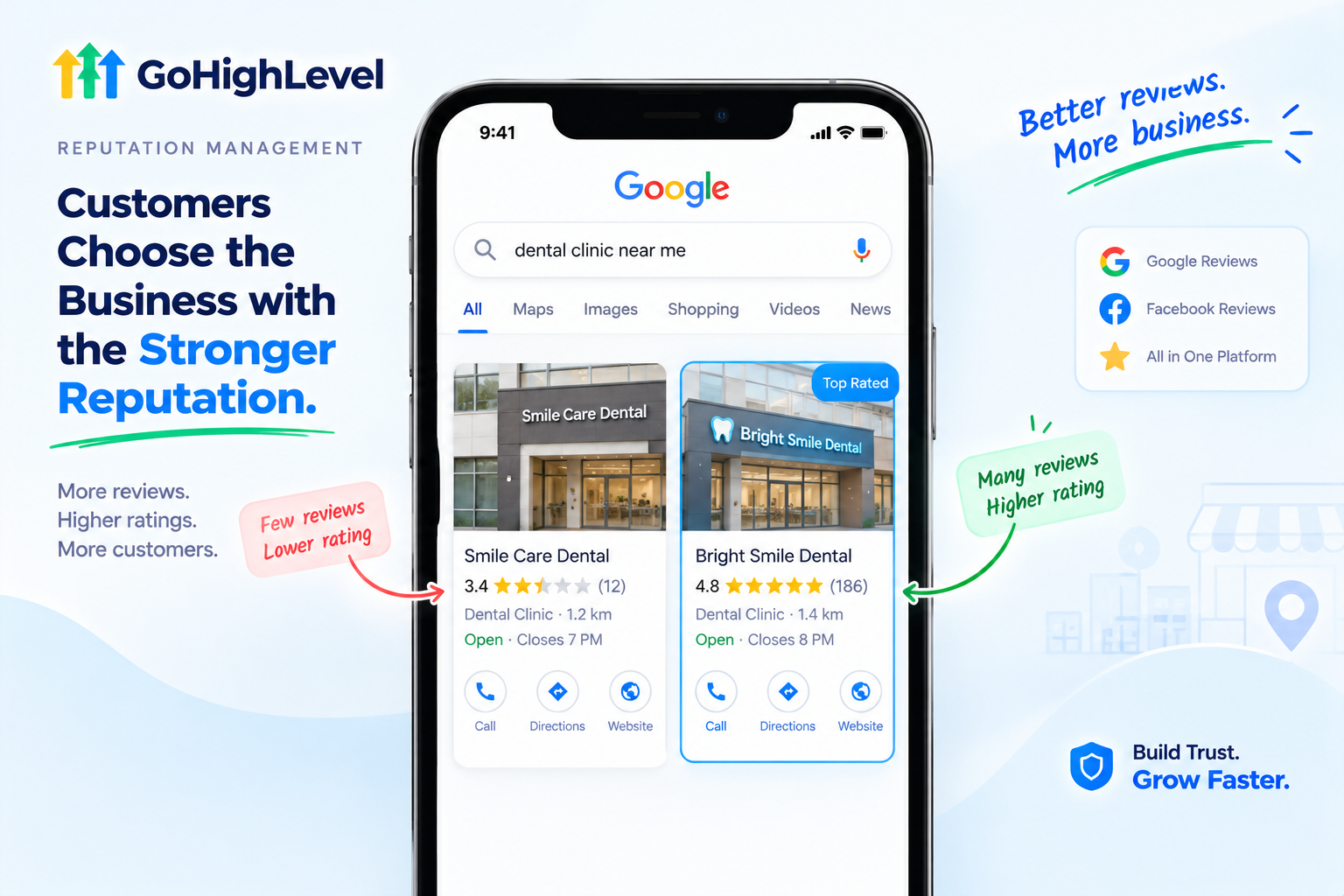
Before most people call a business, book an appointment, or walk through the door, they do one thing first: check the reviews.
A business with 12 reviews and a 3.9 rating will lose customers to a competitor with 180 reviews and a 4.8 rating, even if the service is just as good. Online reputation has become one of the biggest deciding factors for local businesses.
The problem? Most happy customers never think to leave a review unless someone asks. That’s where GoHighLevel reputation management comes in. It automates review requests, brings every review into one dashboard, and helps businesses reply quickly, often with the help of AI.
In this guide, we’ll cover how it works, how to set it up, what to say in your requests and replies, how to stay compliant with Google’s rules, and how to help your clients get real results from it.
What Is GoHighLevel Reputation Management?
GoHighLevel reputation management is a set of tools that lets businesses systematically request, monitor, and respond to reviews across Google, Facebook, and other platforms.
Instead of manually texting customers or checking Google every few days, everything happens inside the same platform as the CRM, inbox, and workflows. For many businesses, it replaces separate review tools like Podium and Birdeye.
Key Features at a Glance
| Feature | What It Does |
|---|---|
| Review Requests | Sends review links to customers by SMS and email |
| Automated Timing | Triggers requests after appointments, jobs, or purchases |
| Review Monitoring | Shows new Google and Facebook reviews in one dashboard |
| Review Replies | Lets businesses respond without logging into each platform |
| AI Review Responses | Drafts or posts professional replies automatically |
| Review Widget | Displays top reviews on websites and landing pages |
| Reporting | Tracks reviews received, ratings, and request activity |
| Mobile App Access | Lets teams send requests and manage reviews on the go |
Let’s look at each part in more detail.
1. Review Requests
The heart of reputation management is simply asking. GoHighLevel lets businesses send review requests by email or SMS, with a direct link that takes customers straight to the review page.
You can send requests two ways:
Inside the reputation settings, you can quickly set up SMS and email templates for your Google review requests, so every message stays on-brand.
2. Automating Requests With Workflows
Here’s where things get powerful. Instead of relying on staff to remember, a workflow sends review requests automatically.
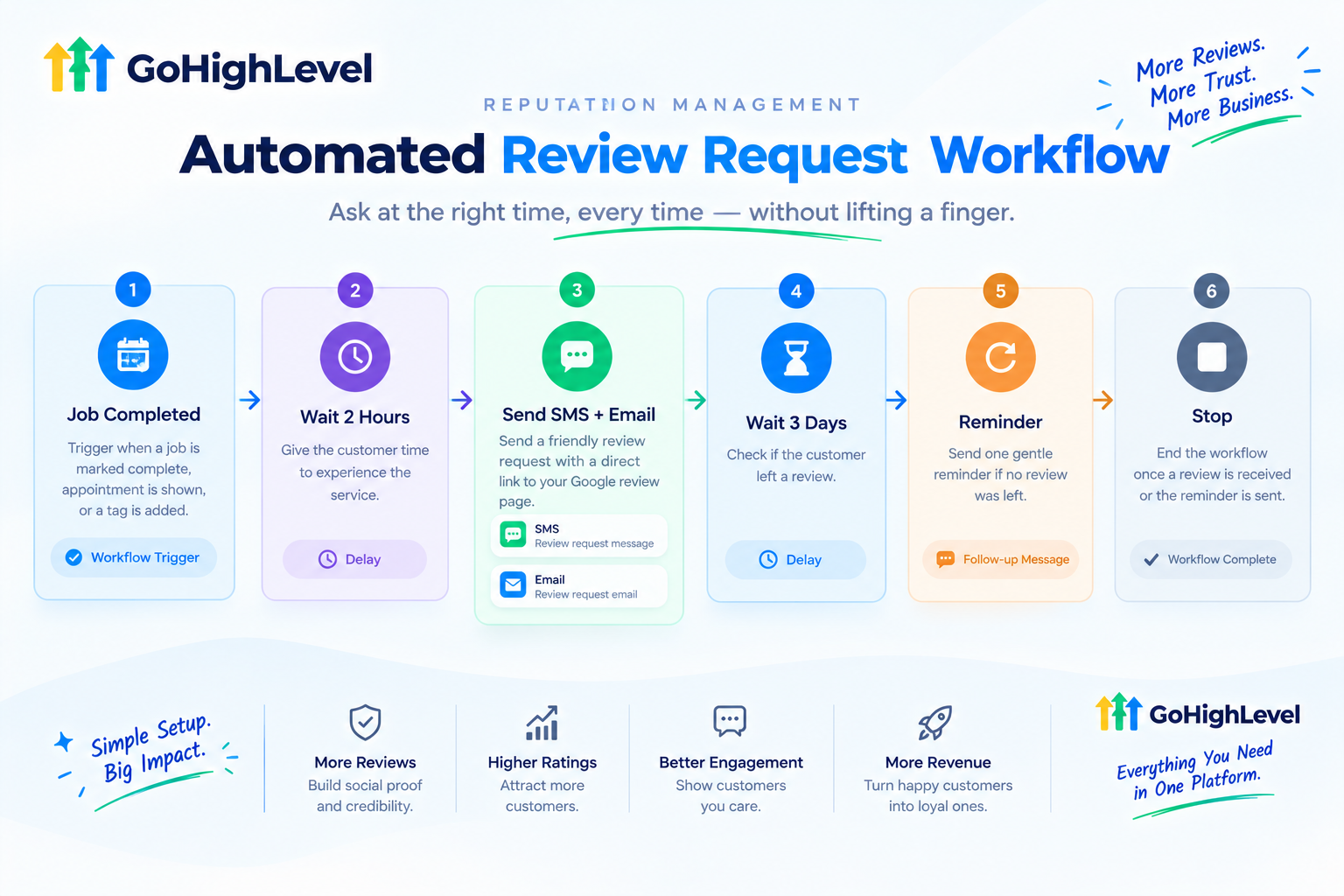
A popular setup looks like this:
Trigger: Job marked complete, appointment marked as “showed,” or a tag is added
Wait about 2 hours: Give the customer time to experience the service
Send SMS: A short, friendly request with the review link
Send email: A backup version through a second channel
Wait 3 days: Check whether a review was left
Send one gentle reminder: Then stop
Timing matters. Many setups send the request 1 to 2 hours after the service is complete, while the experience is still fresh.
Want help building automations like this? Read our GoHighLevel workflow automation guide .
3. Review Monitoring Dashboard
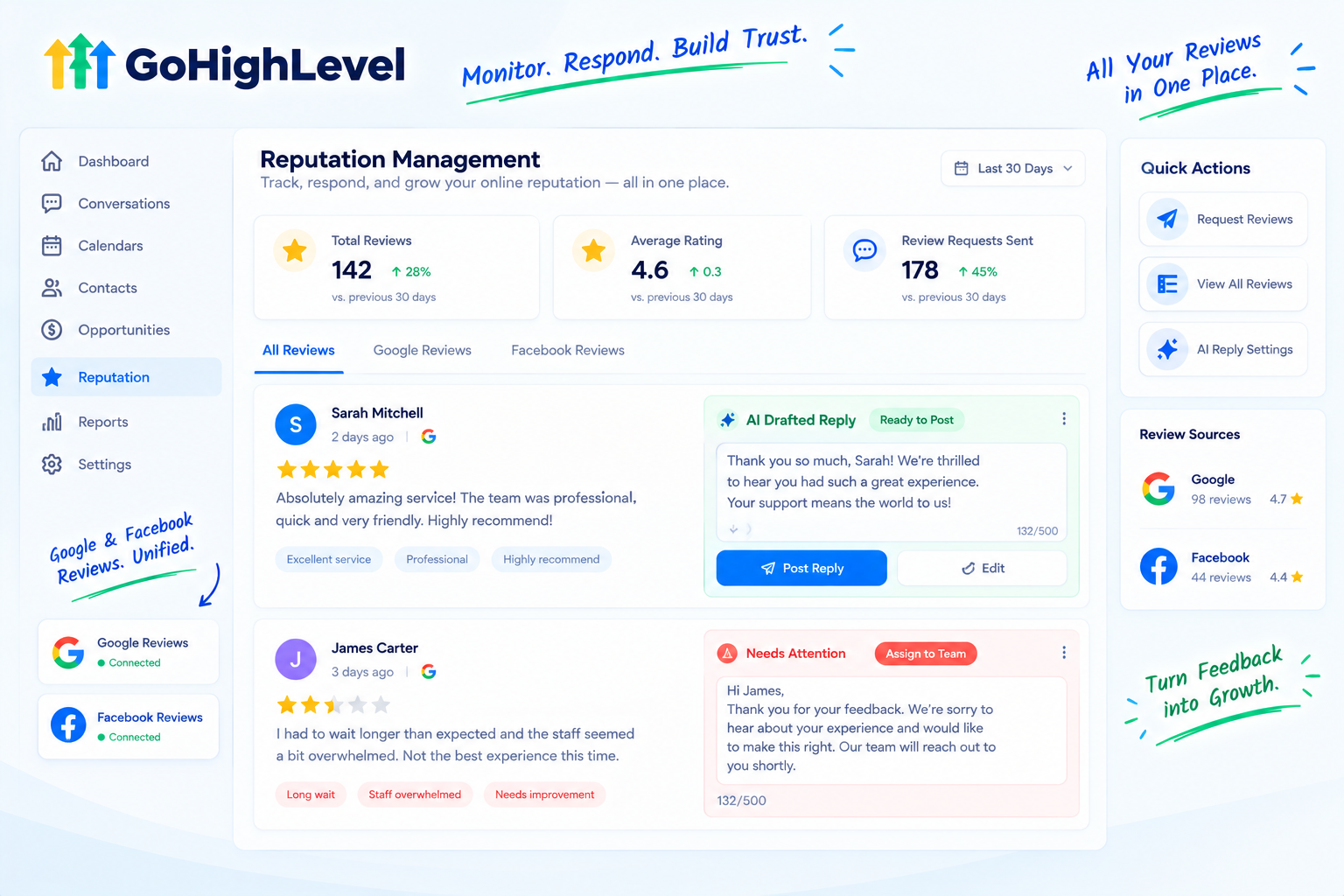
Once Google Business Profile and Facebook are connected, GoHighLevel pulls every review into one dashboard. No more logging into multiple platforms to see what customers are saying.
The dashboard typically shows:
Reviews also show up in the unified inbox, so teams can reply alongside other customer conversations. Learn more in our unified inbox guide .
4. Replying to Reviews (With AI)
Replying to reviews shows customers and future buyers that the business is listening. With GoHighLevel, you can reply directly from the platform, and responses automatically sync back to Google or Facebook.
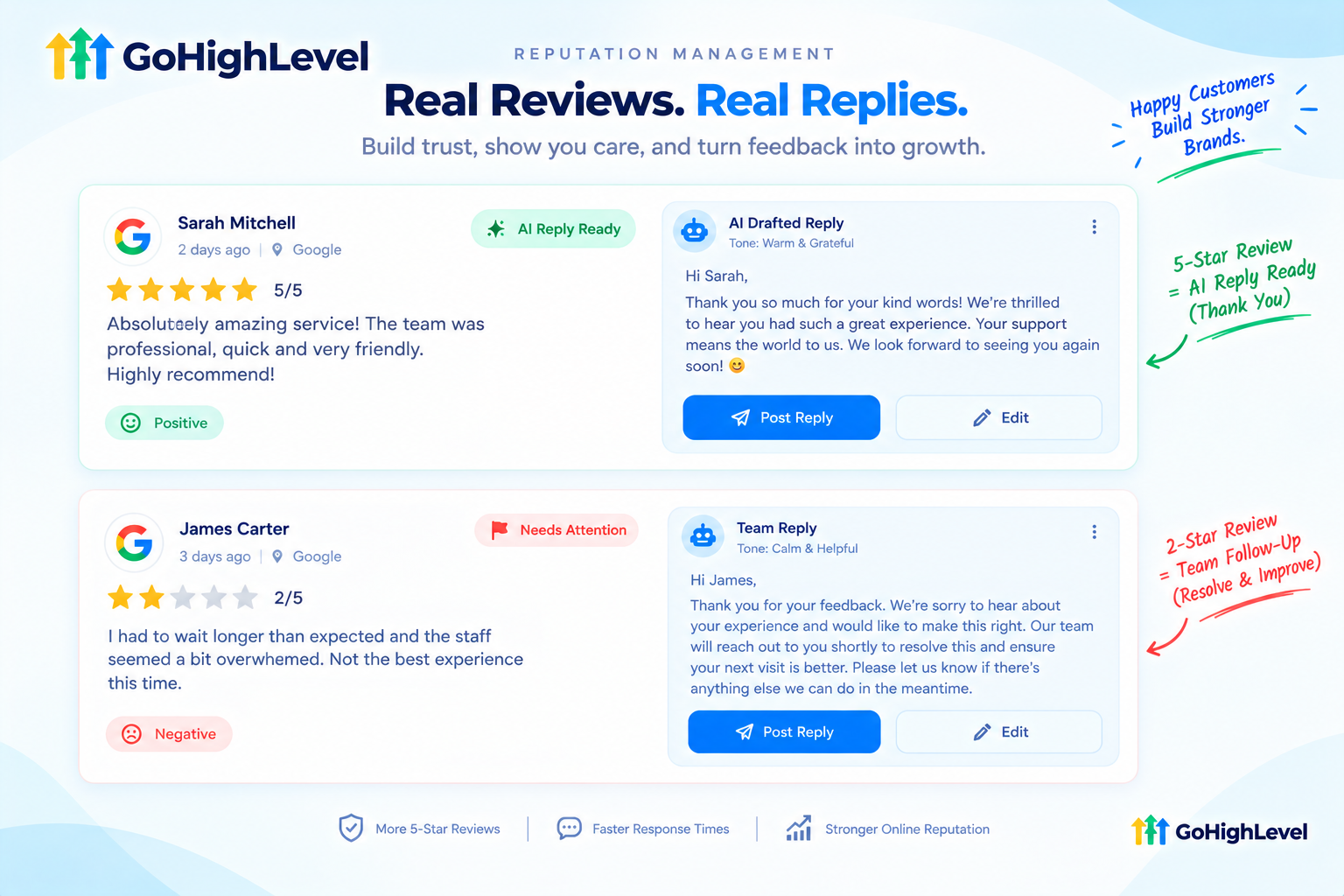
Even better, AI-powered review responses can draft context-aware, professional replies in seconds.
A smart approach many agencies use:
This keeps response rates high without risking an awkward AI reply to an unhappy customer.
5. Review Widget
Great reviews shouldn’t only live on Google. The review widget lets businesses showcase their best reviews directly on their website, landing pages, and funnels.
It works as instant social proof right where visitors are deciding whether to call, book, or buy.
Stay Compliant: Google’s Review Rules
This is the part many businesses (and even some agencies) get wrong. Asking for reviews is perfectly fine. But some tactics can get reviews removed or put the business profile at risk.
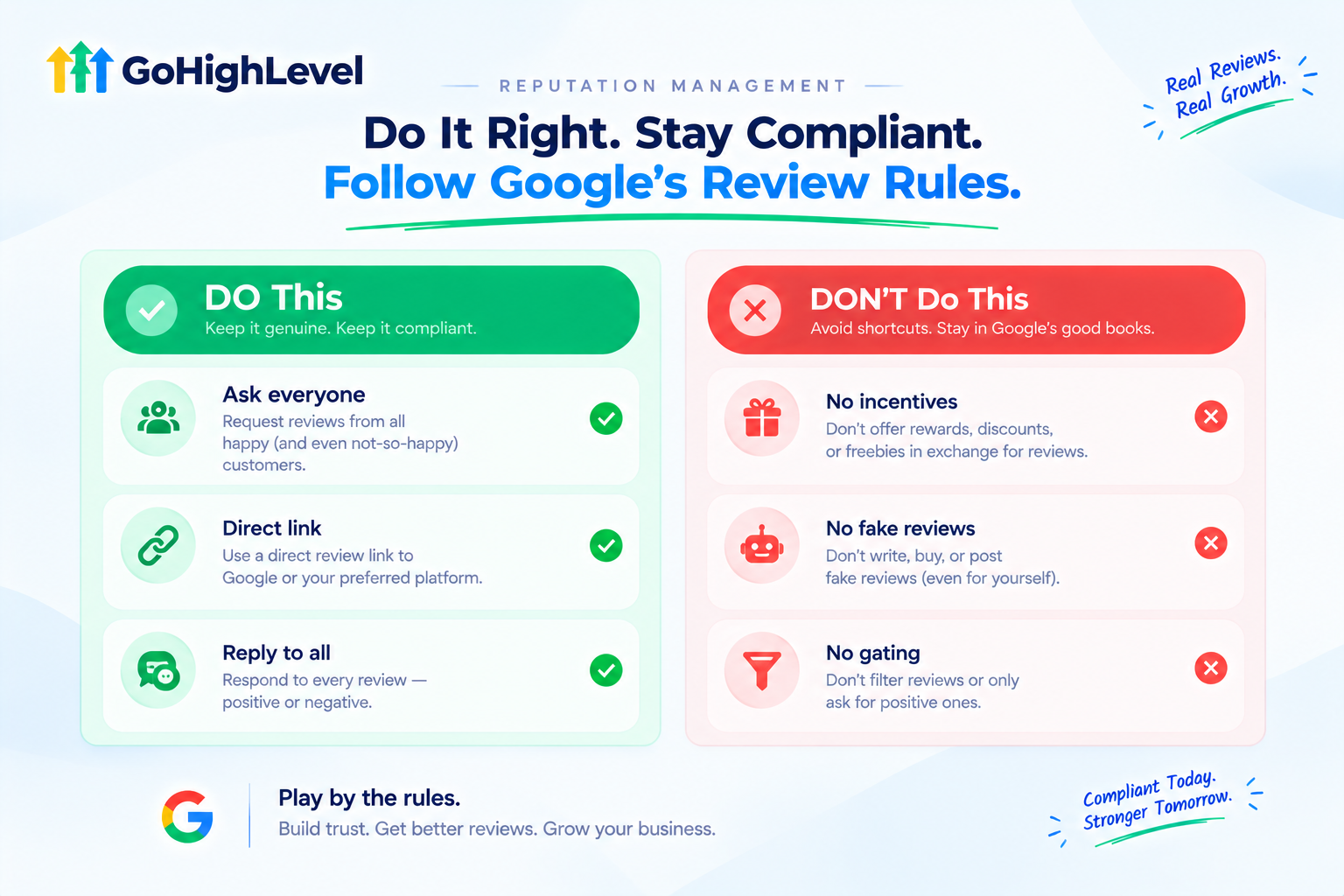
Google explicitly allows businesses to ask customers for reviews. What it prohibits is offering incentives, posting fake reviews, review gating, and buying reviews.
| Allowed | Not Allowed |
|---|---|
| Asking every customer for a review | Only asking customers you think are happy (review gating) |
| Sending a direct review link | Offering discounts, gifts, or payments for reviews |
| Following up with one polite reminder | Posting fake reviews or buying them |
| Replying to all reviews, good and bad | Pressuring customers to change their review |
| Reporting reviews that violate policy | Creating reviews from employees or family |
A quick note on review gating: Some setups ask customers “How was your experience?” first, then only send happy customers to Google while sending unhappy ones to a private form. Google prohibits review gating, meaning selectively asking only satisfied customers for reviews while discouraging dissatisfied ones. The safest approach is simple: send every customer the same review link, and handle any negative feedback with fast, genuine follow-up.
Review Request Templates
The best requests are short, personal, and easy to act on. Here are templates you can adapt:
| Industry | Sample Review Request |
|---|---|
| Dental clinic | “Hi [Name], thanks for visiting [Clinic] today! If you have a minute, we’d love your feedback on Google: [link]” |
| Med spa | “Hi [Name], we hope you love your results! Would you mind sharing your experience? It helps others find us: [link]” |
| Home services | “Thanks for choosing [Company], [Name]! If we did a great job, a quick Google review would mean a lot: [link]” |
| Restaurant | “Thanks for dining with us, [Name]! We’d really appreciate a quick review: [link]” |
| Real estate | “Congrats again on your new home, [Name]! If you enjoyed working with me, I’d be grateful for a review: [link]” |
Gentle Reminder Template
“Hi [Name], just a quick reminder in case you missed it. Your feedback helps us a lot: [link]. Thank you!”
Review Response Templates
For a positive review:
“Thank you so much, [Name]! We’re thrilled you had a great experience with [service]. We look forward to seeing you again soon!”
For a negative review:
“Hi [Name], we’re sorry your experience didn’t meet expectations. We’d like to make this right. Please contact us at [contact method] so we can help.”
Keep negative replies calm, short, and focused on solving the problem offline. Future customers will read how the business handled it.
How to Set Up GoHighLevel Reputation Management
Here’s a step-by-step setup for a new client:
Connect Google Business Profile and Facebook. This enables review monitoring and replies.
Set up review request templates. Create SMS and email messages that match the brand.
Build the review request workflow. Trigger it after appointments, jobs, or purchases.
Add a reminder step. One polite follow-up, then stop.
Configure AI review responses. Decide which reviews AI can reply to automatically.
Set up negative review alerts. Make sure the team hears about low ratings right away.
Add the review widget to the website. Show off the best reviews where buyers make decisions.
Train the team. Show them how to send manual requests and reply to reviews.
Check results monthly. Track new reviews, average rating, and response rate.
Metrics to Track
| Metric | Why It Matters |
|---|---|
| New reviews per month | Shows whether the system is working |
| Average star rating | Reflects customer satisfaction over time |
| Request-to-review rate | Reveals how well requests convert |
| Response rate | Shows the business is engaged and listening |
| Response time | Faster replies, especially to negatives, build trust |
Best Practices
Common Mistakes to Avoid
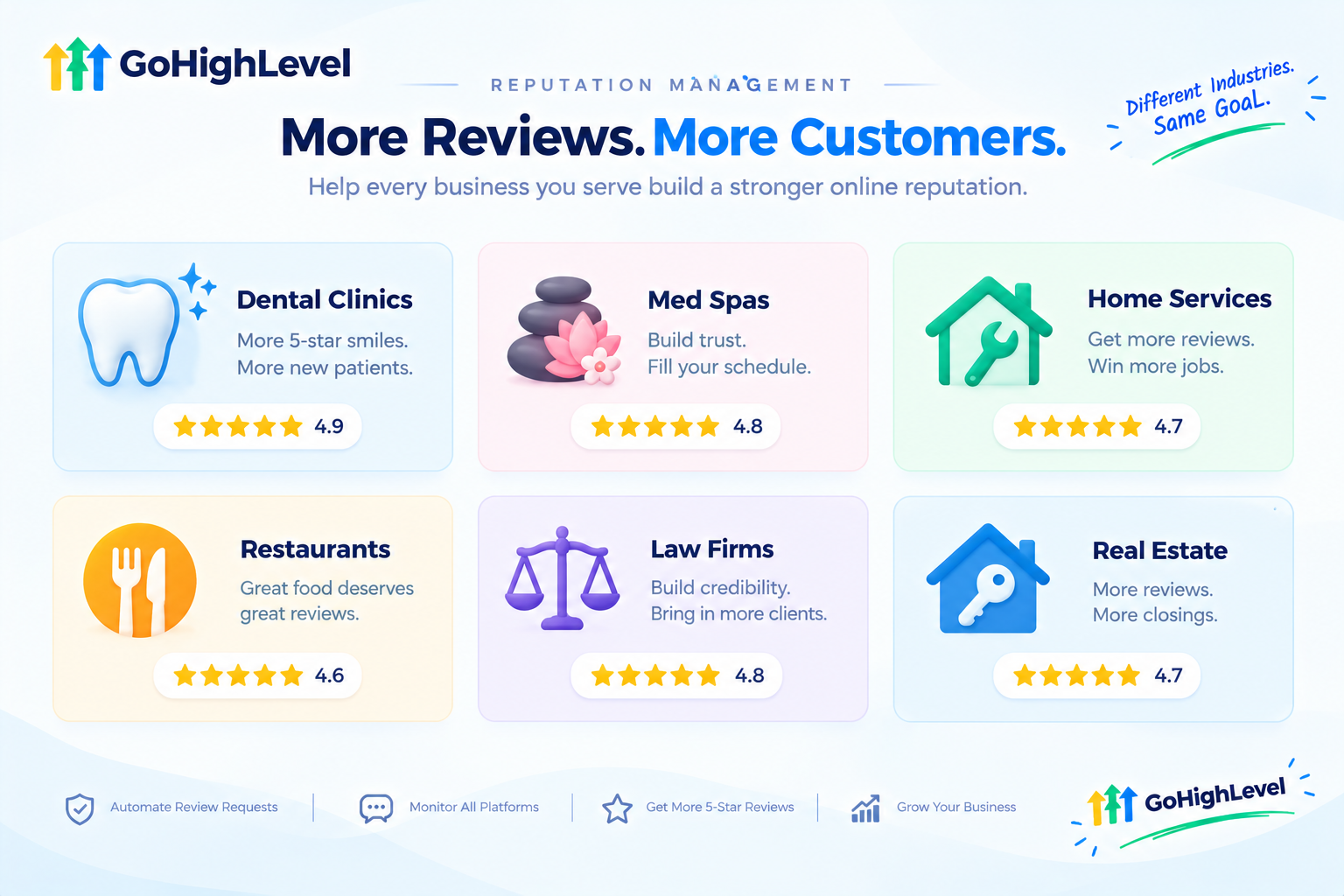
Who Benefits Most?
| Business Type | Why Reviews Matter |
|---|---|
| Dental and medical clinics | Patients research carefully before choosing a provider |
| Med spas and salons | Trust and results drive bookings |
| Home services | Homeowners compare ratings before inviting someone in |
| Restaurants | Ratings strongly influence where people eat |
| Law firms | Reviews build credibility for high-stakes decisions |
| Real estate agents | Testimonials help win new listings |
Reputation Management as an Agency Service
For agencies, reputation management is one of the easiest services to sell. The value is obvious, results are visible on Google, and once it’s set up, it runs mostly on autopilot.
Ways to package it:
The Real Challenge: Clients Don’t Always See the System
Here’s a common problem. The reviews start rolling in, but clients don’t connect the dots. They see a few more stars on Google and assume it’s luck, not the system you built.
Or worse, they never switch on review requests in the first place because they feel awkward asking customers, or don’t understand how the automation works.
When clients don’t understand the system, they can’t appreciate it. The fix is showing them, clearly and quickly, how their reputation engine works behind the scenes.
Explain Reputation Management With a Feature Video
Our white-label GoHighLevel feature videos make tools like reputation management easy to understand. Each video focuses on a single feature and explains it in a quick 45 to 60 second animation.
Here’s what’s included:
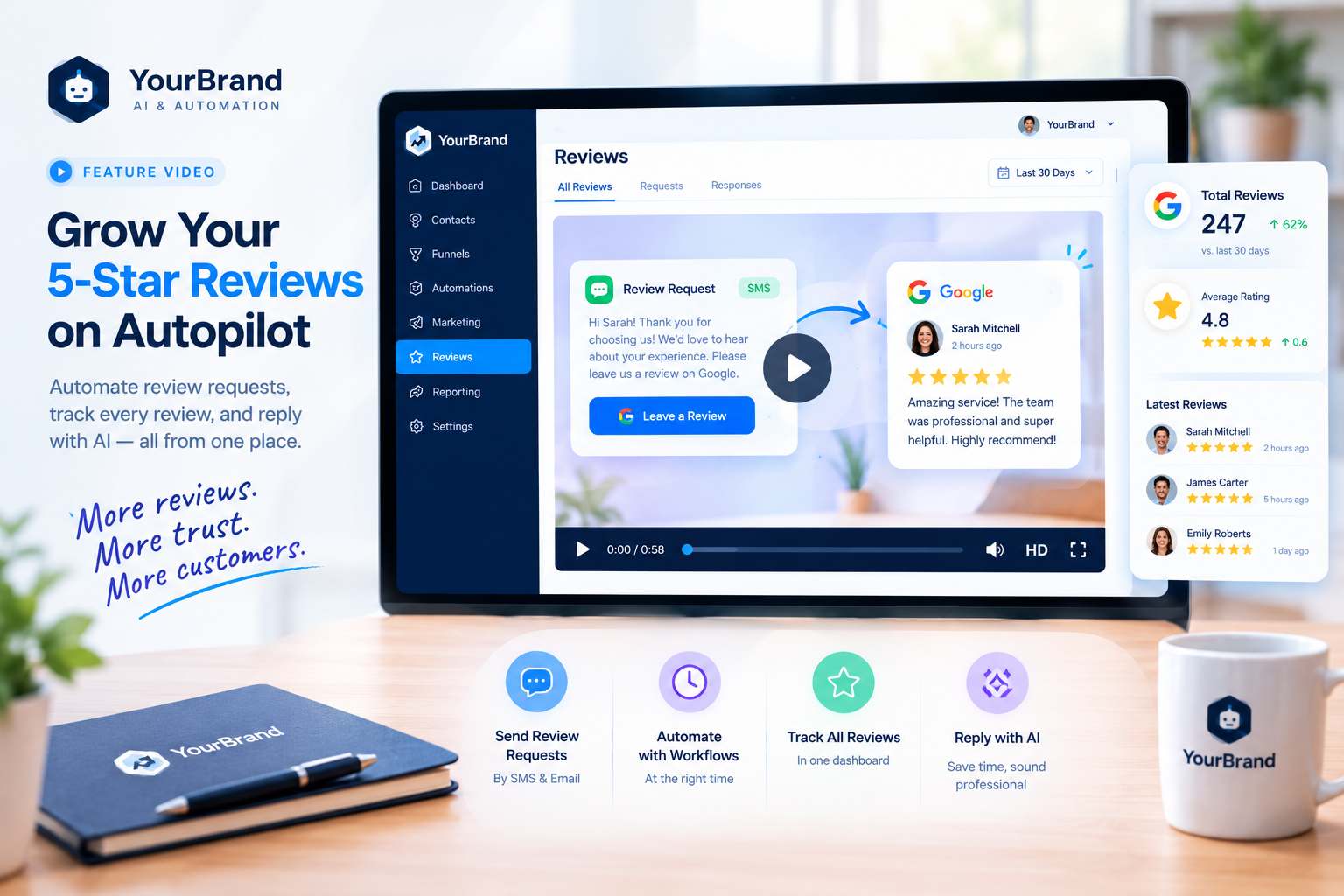
Here’s where to use your reputation management feature video:
| Where to Use It | What It Does |
|---|---|
| Sales pages and ads | Sells review growth as a clear, visible benefit |
| Cold outreach | Hooks local businesses with low review counts |
| Sales calls | Explains the system in under a minute |
| Onboarding checklists | Encourages clients to connect accounts and turn on requests |
| Inside your app | Explains settings before a support ticket |
Tips for Selling Reputation Management
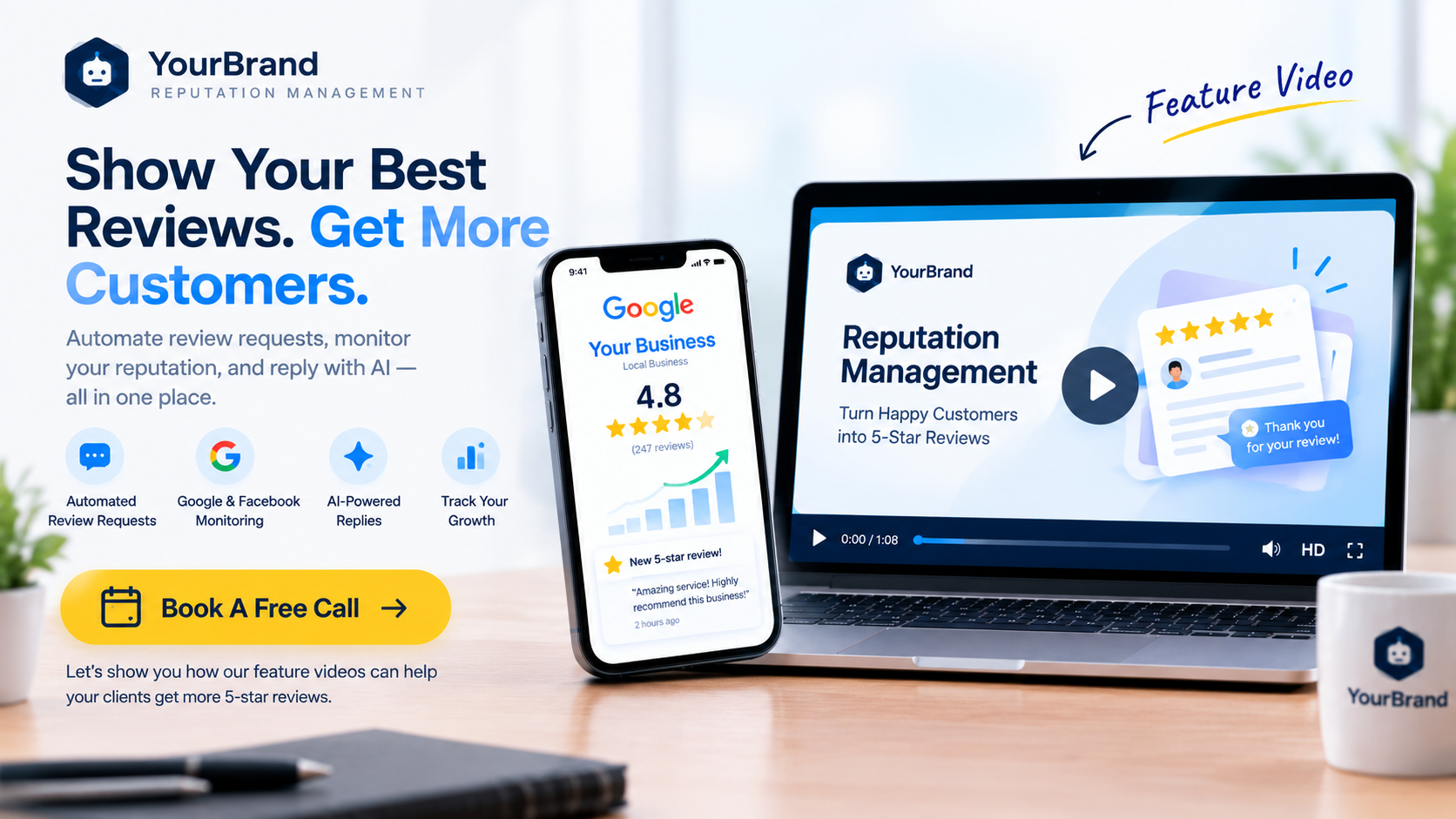
Ready to help clients understand and use their reputation tools?
Book A Free Call and we’ll plan the right feature videos for your platform.
Frequently Asked Questions
What is GoHighLevel reputation management?
It’s a set of tools that lets businesses request, monitor, and respond to reviews on Google, Facebook, and other platforms from one place.
Can GoHighLevel automatically send review requests?
Yes. Workflows can send requests by SMS and email after appointments, jobs, or purchases.
Can I reply to Google reviews from GoHighLevel?
Yes. Replies sent from the platform sync back to Google or Facebook.
Does GoHighLevel use AI to reply to reviews?
Yes. AI can draft or post professional replies, and many agencies limit auto-replies to positive reviews.
Is it okay to ask customers for Google reviews?
Yes. Google allows asking for reviews, but prohibits incentives, fake reviews, and review gating.
What is review gating?
It’s only asking happy customers for public reviews while steering unhappy ones elsewhere. Google doesn’t allow it.
Can I show reviews on my website?
Yes. The review widget lets you display reviews on websites and landing pages.
Will your feature videos mention GoHighLevel?
No. Every video uses your brand name, colors, and terminology. GoHighLevel never appears.
Skip the Loom. Talk to us.
Tell us what you're building. We'll tell you exactly which video it needs.
or write to hello@ghlexplainer.com